 EC2
 ECS
 EKS
 RDS
 Router · eu-west-3
EC2 instances
Stopped during the nap and started on wake. They stay registered in their target group.
Product
Two parts. A router in each account and region naps and wakes your workloads. The manager finds, onboards and operates them across your organization. Both run in your AWS accounts.
The router · one per account and region
The router watches the request count of each workload on its load balancer. The idle window is 15 minutes by default, checked every 5 minutes. After it, every rule that forwards to the workload's target group switches to its waker. Then the router stops the backends. A request during the switch cancels the nap. The first real request wakes the workload once. Requests are held up to 60 seconds and redirected as soon as the application answers. Otherwise they get a page that reloads by itself. API clients get JSON with a retry delay.
Resources tagged dormeto:workload behind the workload's target group. Onboarding tags them for you. Or the Kubernetes Deployment or StatefulSet whose pods it serves.
Stopped during the nap and started on wake. They stay registered in their target group.
Scaled to zero with their scaling processes suspended, then restored to their size. With a warm pool in Stopped state, a wake restarts instances instead of launching new ones.
Fargate or EC2: desired count to zero with Application Auto Scaling suspended, both restored on wake.
Databases nap with their application: stopped after it, started and awaited before it. A database that AWS restarts after seven days is stopped again.
Deployments and StatefulSets behind the AWS Load Balancer Controller. They scale to zero replicas, and a KEDA ScaledObject is paused. Their replicas come back on wake. Dormeto adds its own Ingress to your IngressGroup and never changes yours.
On a public hostname, scanners show up within minutes of a new certificate. Waking for them would cancel the savings.
HEAD requests, bots, crawlers, monitors and internet scanners get the waiting page, never a wake. So do well-known scanner paths such as /.env or /wp-login.php.
Only the waiting page's own script wakes the workload, so scanners that do not run JavaScript never do. API clients and scripts wake it with the x-dormeto-wake: 1 header.
While a workload is not awake, wakes and requests that did not wake are counted. The dashboard shows them over 7 days.
From the first request to the first answer of the application, on our test workloads in
eu-west-1.
| Workload | Wake time |
|---|---|
| ECS service on Fargate (0.25 vCPU) | 29 to 52 s |
| EC2 instance (t4g.nano) | 35 to 42 s |
| Auto Scaling group with a stopped warm pool | 35 s |
| Fargate service and PostgreSQL (db.t4g.micro) | 6 to 14 min |
Your application's boot time adds to these figures. For long wakes such as databases, visitors see the page that reloads by itself.
Dormeto covers each of your rules with its own rule just before it, with the same conditions. Your rule stays as it is. A rule that acts before its forward, such as a sign-in, gets the waker itself: the operation's steps say so.
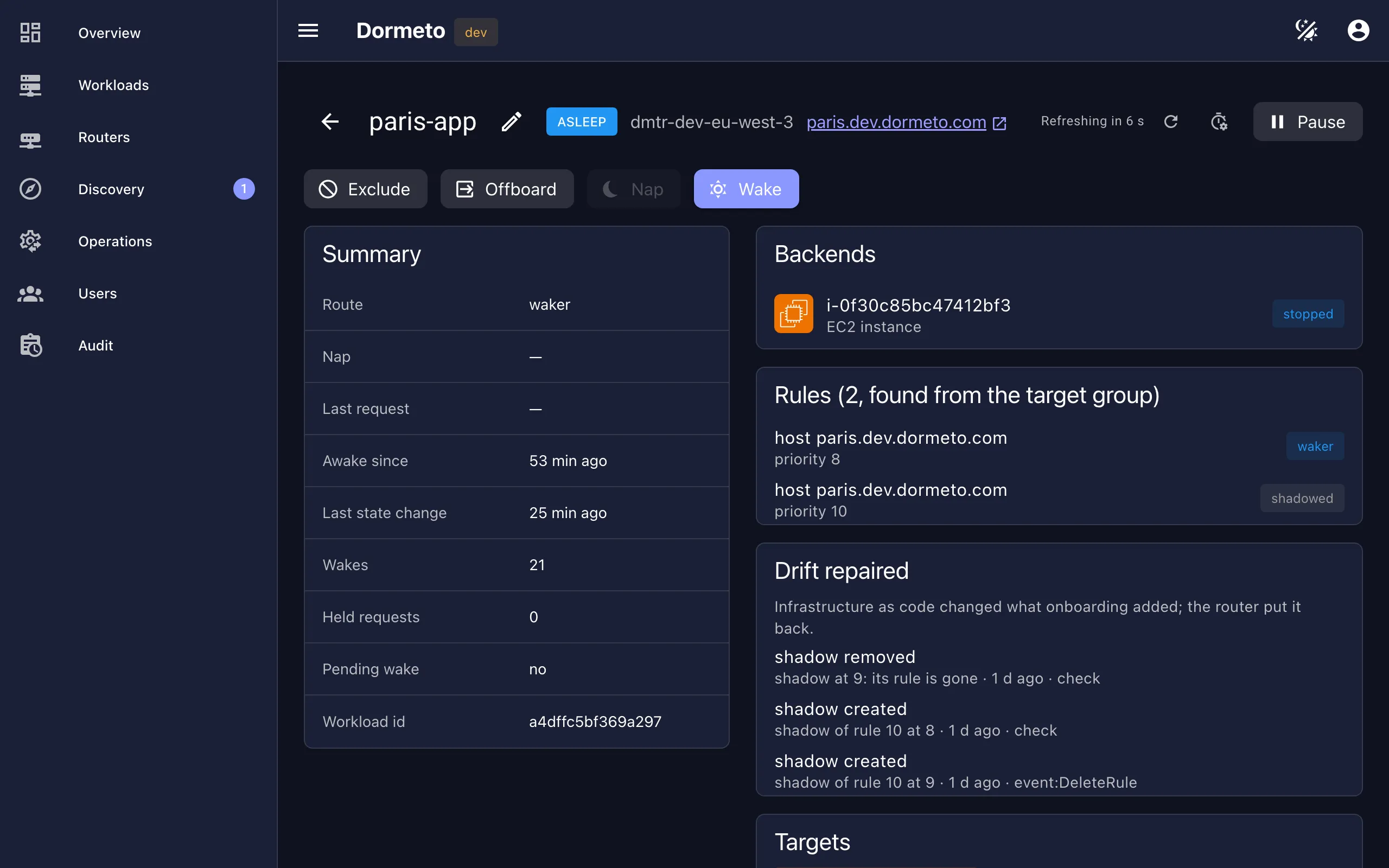
When your tools change or delete what onboarding added, CloudTrail events reach the router. The router then puts it back: about a minute in our tests. Each repair is listed on the workload. A few lines of Terraform keep your plans from removing it.
A workload or a whole router can be paused, with a reason and an optional automatic resume. A paused workload never naps. Requests still wake it.
The manager · one per organization
The manager runs in one account of your organization. It has a dashboard and an API. It runs discovery and operations in your other accounts through roles you create.
Overview
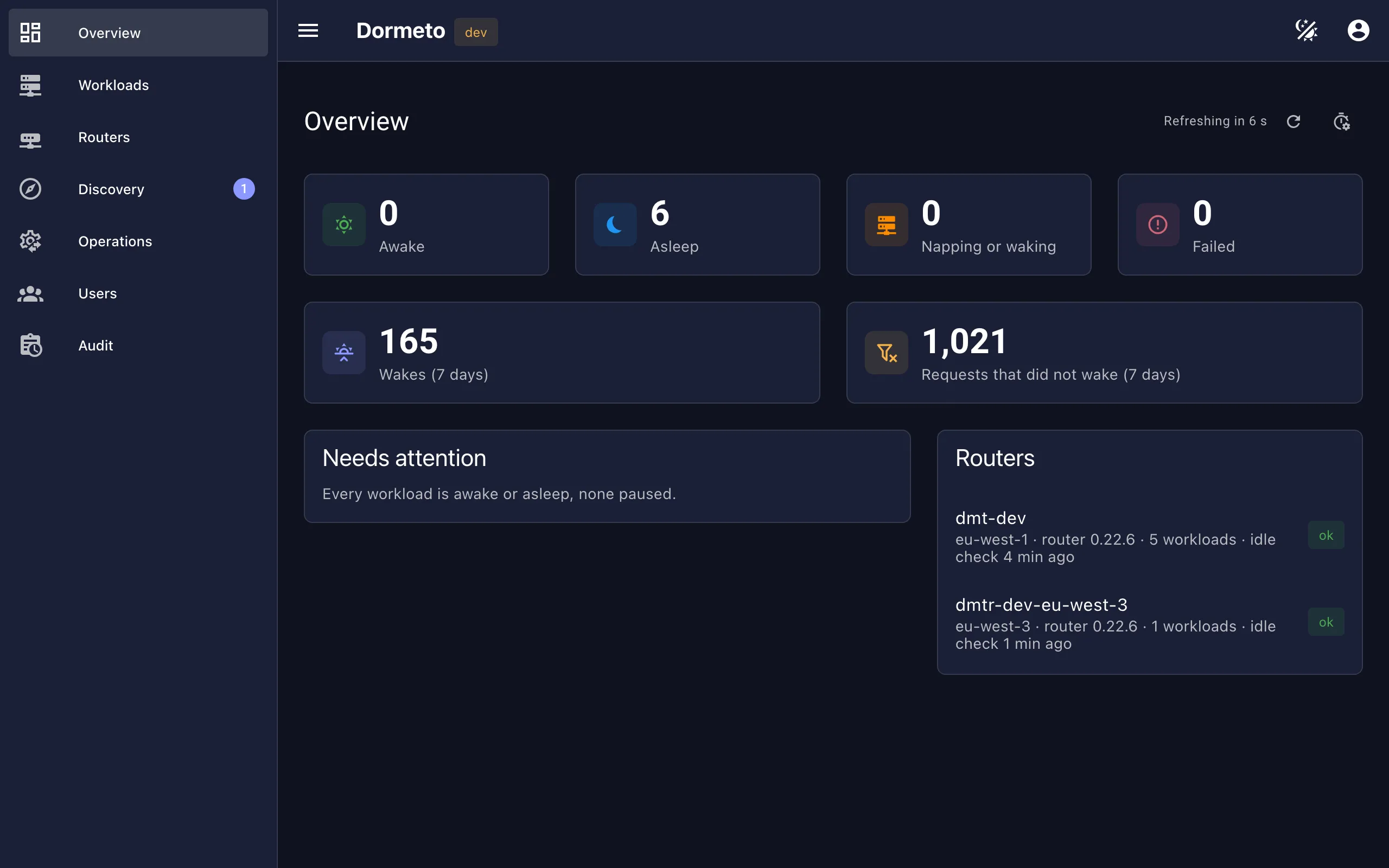
The overview shows workloads by state, and wakes and the requests that did not wake over 7 days. It also shows what needs attention and the health of every router. Routers push their state to the manager after each check: the dashboard stays fast at thousands of workloads. Each workload's history shows a row per day of its states over 24 hours, 7 or 30 days. It shows how long it slept, its wakes and their duration. It also shows what started each change: a request, the idle check, a user of the manager or a failure. And the estimated savings: AWS list prices of what each nap stopped (instances, Fargate tasks, databases) for the time it slept. Spot capacity counts at Spot prices. The discounts you set for Savings Plans, Reserved Instances or your AWS agreement come off the list prices. The figures are per workload and for the last 30 days, net of Dormeto's own cost. Each workload's idle window card replays its last 14 days of requests against windows from 5 to 120 minutes. It says what each would save a month, how often visitors would wake it and wait, and the window to choose.
Discovery
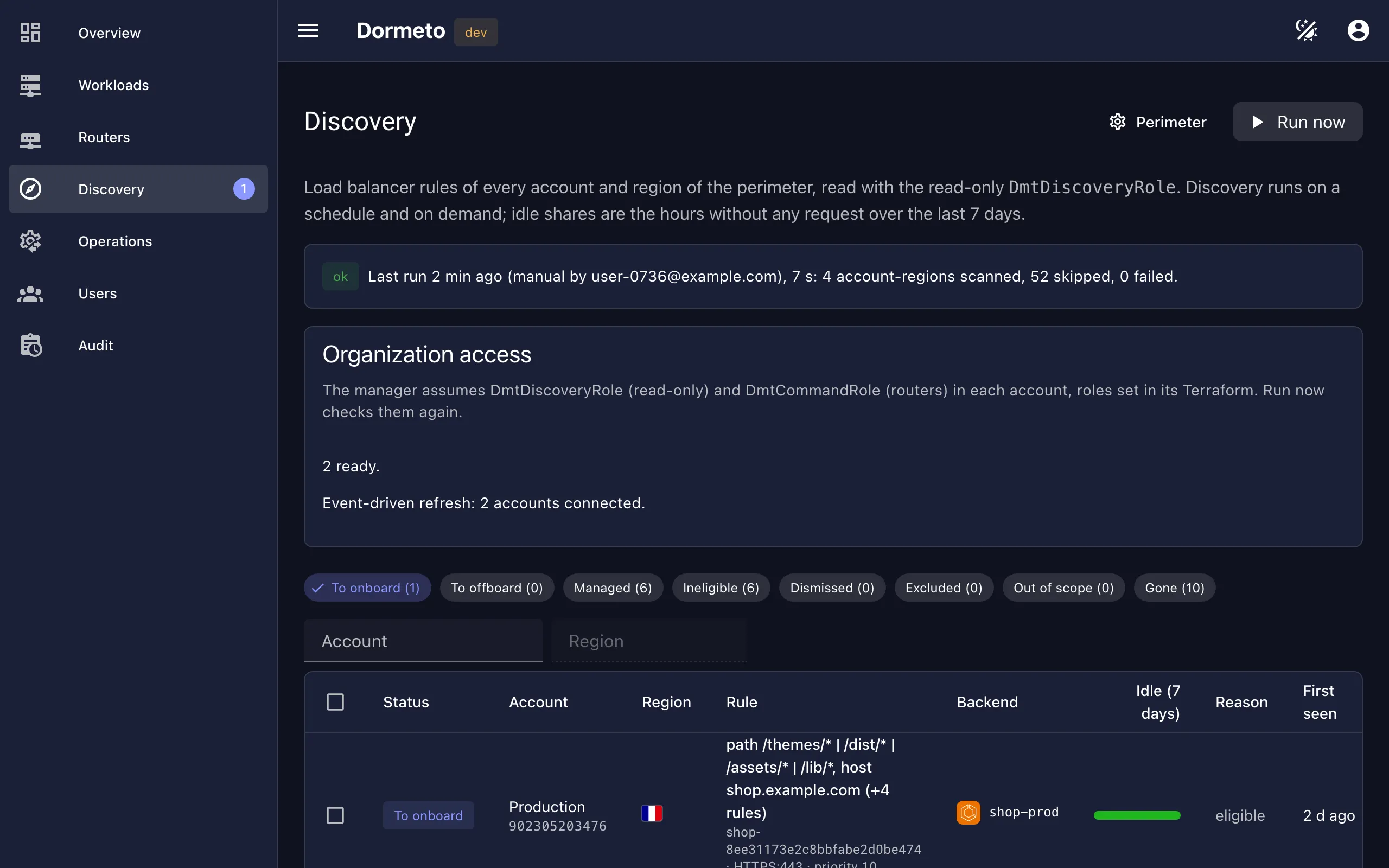
Discovery reads the load balancer rules of every account and region of your organization with a read-only role. It shows each candidate with its idle share over the last 7 days: to onboard, managed, ineligible (with the reason), dismissed, excluded, gone.
The Organization access panel checks the roles of every account at each run and says what is missing. Read about discovery.
Perimeter
Onboarding
The preview shows what would change and checks the load balancer's and the region's quotas. It refuses with the reason when there is no room. Onboarding then tags the backends, adds the waker target group and covers every rule of the target group. You choose the name, the idle window, the wake mode and companion databases. A failed onboarding is undone. Offboarding removes only what onboarding added. Read about workloads.
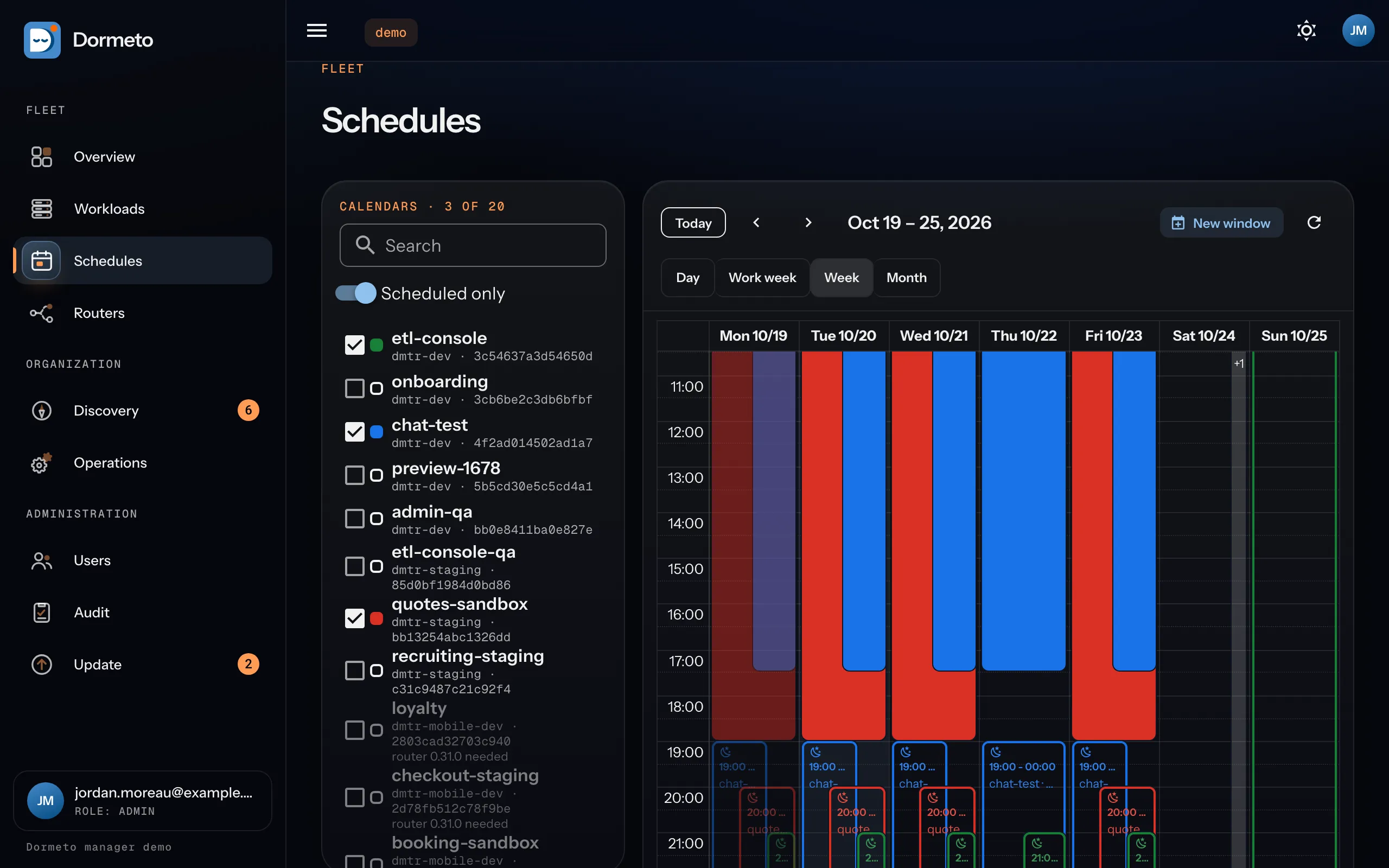
Schedules
Give a workload weekly awake and nap windows, in its time zone. Awake windows wake it before people arrive. Nap windows keep it asleep at night and on weekends, whatever traffic comes. Holidays skip the windows. A maximum nap wakes it now and then for its patches.
The Schedules calendar shows the windows of many workloads in one week. Drag over it to add one. From CI,
dormeto aws workloads keep-awake holds an environment awake for a job.
Read about schedules.
Waiting page
While a workload wakes, its visitors see a page with your icon, title and description, or your own HTML page. The icon is the application's favicon, found for you, or an upload. Set it for the organization, a router or a workload: each level overrides the one above. Visitors read it in English or French, with a progress bar built from the workload's real wake times. Only administrators may set a custom page, since it runs on the application's address. The dashboard previews every state. Read about the waiting page.
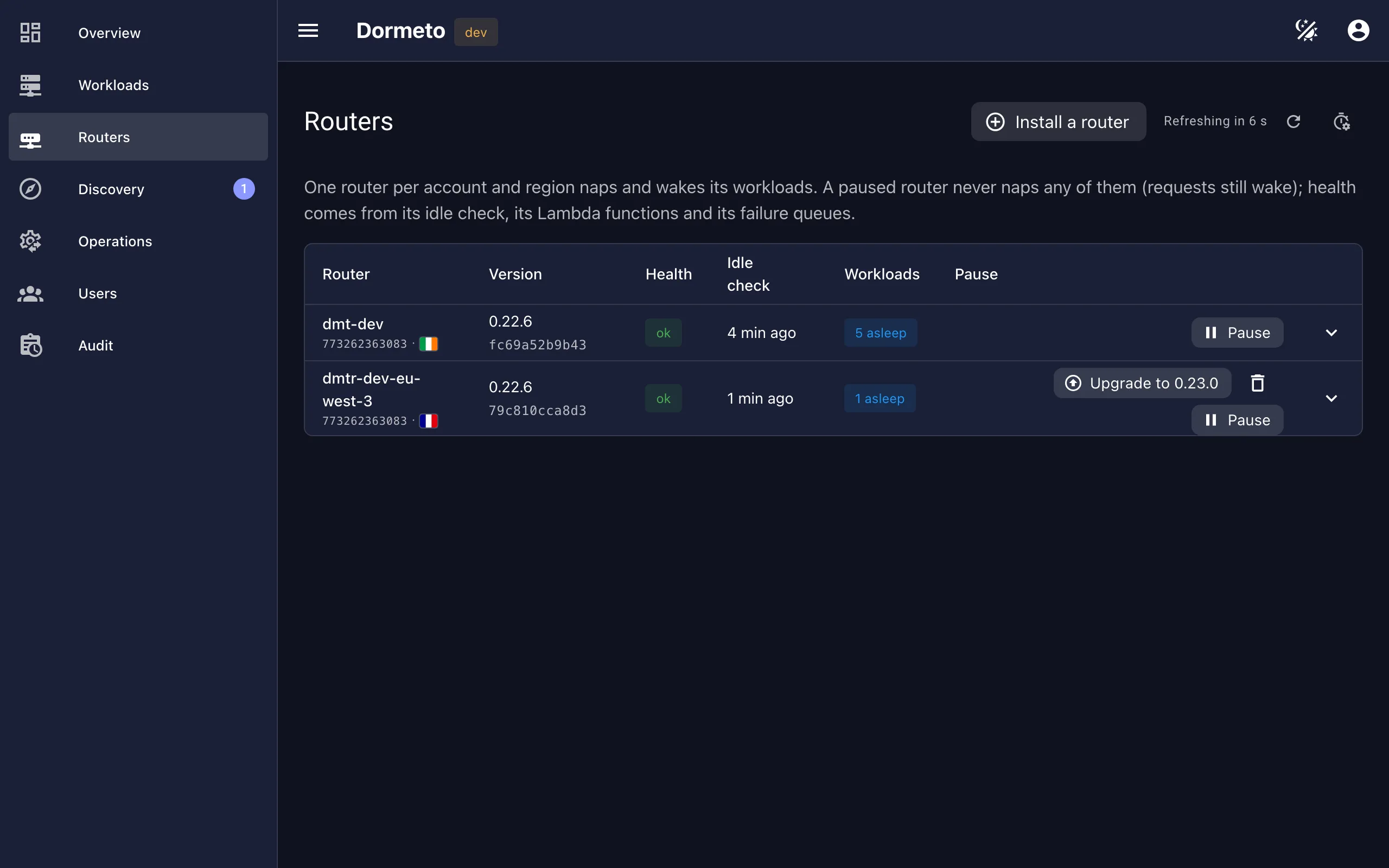
Routers
The manager installs a router in an account and region by AWS API calls, through the command role you created. It upgrades it to the router it carries. Each router reports its health: the last idle check, Lambda errors and throttles, failure queues. It also reports the concurrency it may need against the account's limit. Failed wakes say why (no capacity, a quota, a permission, no healthy target). They are retried with a backoff and, when AWS has no capacity, on fallback instance types. They reach your email and chat channels (Amazon Q Developer in Slack or Microsoft Teams) within 5 minutes, as router health alerts do.
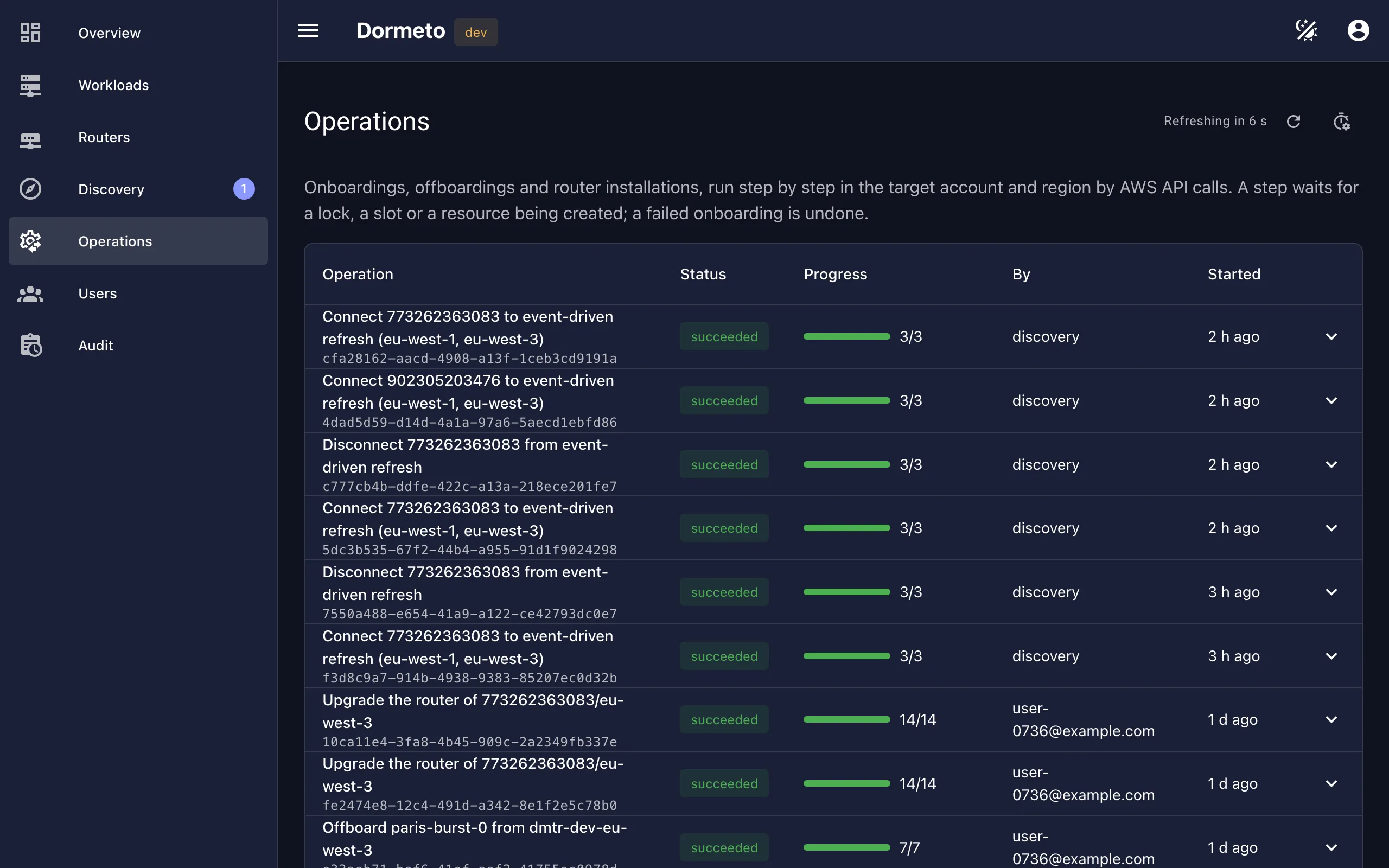
Operations
Onboardings, offboardings, router installs and upgrades, and event-driven refresh connections run as operations, one step at a time, in the target account. Locks keep one change per load balancer at a time and at most three per account and region. The rest wait their turn.
Viewers read. Operators nap, wake, onboard and run discovery. Administrators also install routers, set the perimeter and manage users.
Administrators invite colleagues by email. Sign-in is with Amazon Cognito. Administrators and operators use an authenticator app by default, set up from the dashboard.
Every change made from the dashboard or the API is recorded with its author, its target and its result.
Tag workloads by team or application, then give groups read, wake or nap on a tag. Each group sees and acts only on the workloads its tags grant.
Users sign in with a fingerprint, a face or a security key, registered from the dashboard's Account page.
An optional daily check tells administrators, on the Overview and on the alert topic, when a new manager version is out.
On the roadmap, without dates. Tell us what matters to you: contact@dormeto.com.
No-wake and wake rules (source addresses, paths, user agents, headers). The IP reputation lists the manager distributes. Default settings per workload type. All managed from the dashboard.
Wake, nap and pause from your chat channel. A periodic digest of what napped, what it saved and what failed.


 Amazon Cognito