Docs
Workloads
A workload is a web app Dormeto naps. It is an application target group of a load balancer, and the backends behind it. Operators onboard it from Discovery, then manage it from its page under Workloads.
20 min readManager 0.21.0
 EC2
 Aurora
Onboarding
In Discovery, select a candidate To onboard, then Onboard…. Operators and administrators can do this. The account needs the command role (Organization access).
What onboarding changes
- The router of the account and region is installed first, if needed.
- It tags the backends
dormeto:workload: instances, Auto Scaling groups, ECS services, companion databases. - It adds its own rule, with the waker, before each rule forwarding to the target group. Your rule stays as it is. A rule it can't cover that way gets the waker and the tag itself. That is a rule that acts before its forward (a sign-in, for example), has transforms, or has no free priority before it. The operation's steps name those rules. Traffic is unchanged.
- From then on, it naps the workload once idle.
- A failed onboarding is undone.
- If Terraform writes any of these resources, it needs to ignore what changes.
Kubernetes workloads on EKS can be onboarded too. Three ways put the waker in front of them: the load balancer's rules, Dormeto's own Ingress, or a patch of the workload's Ingress. The Onboard dialog says which. The cluster's API endpoint must be public to every address, or its private access must be on. With private access, a small proxy function in its VPC reaches it, from router 0.33.0. The cluster must grant Dormeto its rights first (Organization access).
If Terraform writes these resources
Terraform doesn't know what onboarding added, so every plan offers to remove it. If you apply that plan, the router puts it all back, about a minute later in our tests. It lists each repair on the workload's page. During that minute a changed rule goes straight to the application. Visitors of a sleeping workload then get the load balancer's own error. These lines keep your plans clean.
For the tags on every backend, in the AWS provider:
provider "aws" {
  ignore_tags {
    key_prefixes = ["dormeto:"]
  }
}
Then, on the resources you wrote, lifecycle { ignore_changes = [...] } with these fields:
| Resource | Fields | Why |
|---|---|---|
aws_lb_listener_rule | action | Only for a rule Dormeto changed in place: its forward holds the waker and the weights. A rule covered by Dormeto's own rule needs nothing. |
aws_ecs_service | desired_count | A nap sets it to 0, and an apply would start the service again. |
aws_autoscaling_group | min_size, max_size, desired_capacity, suspended_processes | A nap scales the group to 0 and suspends its scaling processes. |
aws_instance | instance_type | Only with fallback instance types. A wake may run the instance on a fallback type until its next nap. An apply would change it back. |
Databases need only the provider block. With action ignored, Terraform stops applying your own edits to that rule's actions. Remove the ignore for that apply, and the router puts the waker back.
The provider block covers everything that provider writes. Leave it out if the provider also declares dormeto: tags, as it does for a workload written with the workload module. Such a workload isn't repaired either: your configuration declares its rule's waker and tag, and ignores action. For Kubernetes workloads, the Onboard dialog gives what a GitOps tool must ignore.
The settings
The Onboard dialog asks for them. Only the name, the tags and Hibernate change afterwards.
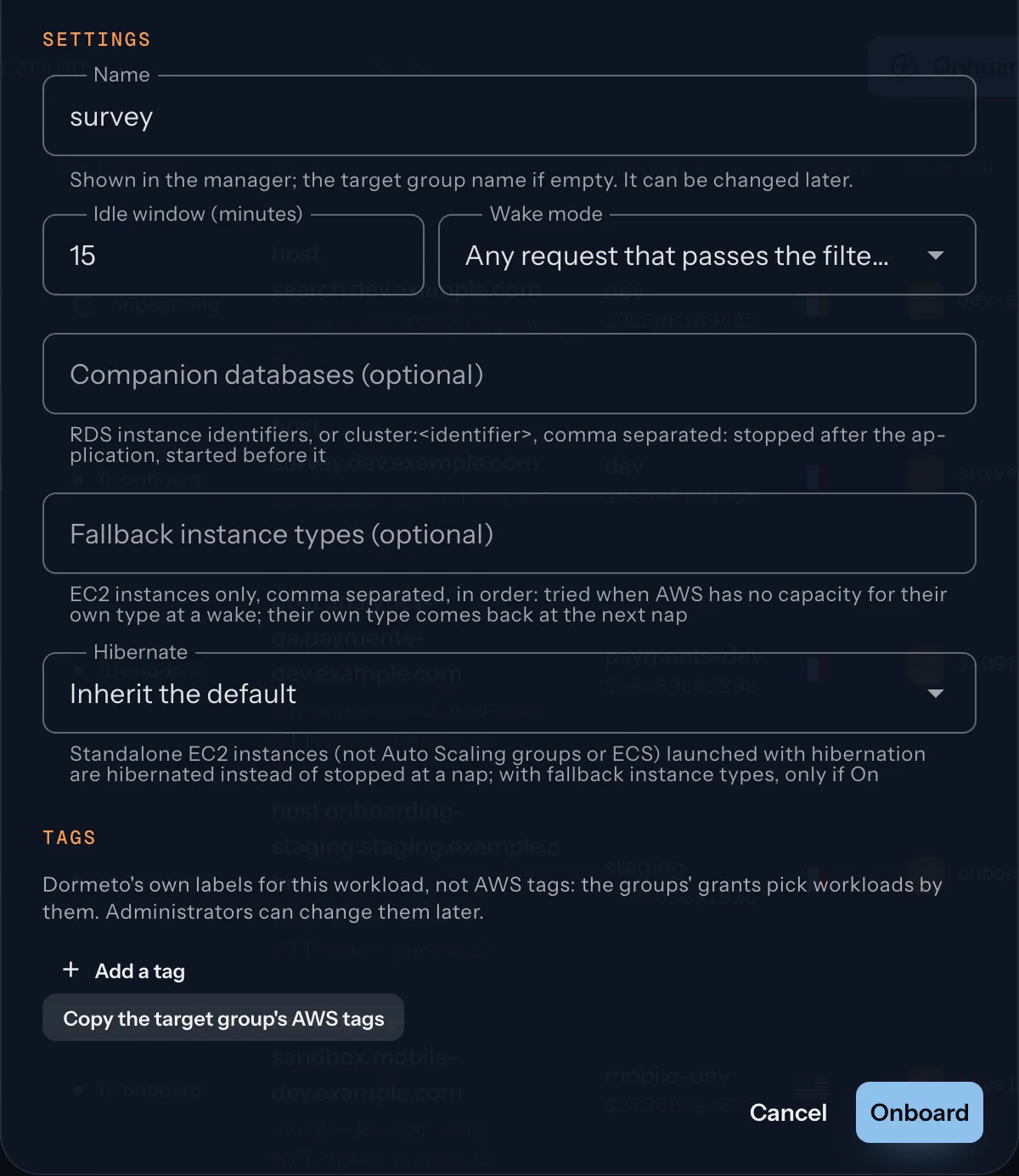
| Setting | What it does |
|---|---|
| Namedefault: The target group's name | Shown in the manager, up to 64 characters. Rename changes it later. |
| Idle windowdefault: 15 minutes | 5 to 1,440 minutes without a request before a nap. |
| Wake modedefault: Any | Any: every request that passes the built-in
filters wakes. Browser: only the waiting page's script or the x-dormeto-wake: 1 header wakes. |
| Companion databasesdefault: None | RDS instance identifiers, or
cluster:<identifier> for Aurora, comma separated. Stopped after the application, started before it. |
| Fallback instance typesdefault: None | EC2 instances only. Up to 5 instance types, such as t3a.medium. At a wake, if AWS has no capacity for the instance's own type, Dormeto tries these in order. The instance gets its own type back at its next nap. In Terraform: fallback_instance_types of the workload module. |
| Hibernatedefault: Inherit | Standalone EC2 instances only. On: an instance launched with hibernation is hibernated at a nap, not stopped. Off: it is stopped. Inherit: the router's value, then the manager's (off when the workload has fallback instance types) (Hibernation). In Terraform: hibernate of the workload module. |
| Tagsdefault: None | Administrators only. Dormeto's own labels, such as team=payments, not AWS tags. Groups grant access by tag, and the CLI selects workloads by tag. Up to 50. Copy the target group's AWS tags fills them in from AWS. |
After onboarding
The workload's page, under Workloads, has an Actions menu. Operators and administrators see every action. Members see those their groups grant on the workload's tags.
- Wake or Nap now. Nap is off while the workload is paused.
- Pause stops the naps. Requests still wake it. Give a reason and, if you like, an automatic resume. It can be in 1 hour, 4 hours, 1 day, 7 days, or at a date, at most 366 days ahead. Pausing wakes an asleep workload, unless you leave it asleep. Resume ends the pause.
- Rename changes the name people see.
- Exclude keeps its target group, its load balancer or its account away from Dormeto, with a reason and an optional expiry. The workload is never napped again and waits for offboarding.
- Offboard wakes the workload, then removes only what onboarding added: the waker, Dormeto's rules, the tags it set, the configuration.
Edit tags, beside the tags, is for administrators. The Schedule card sets weekly awake and nap windows (Schedules). A whole router is paused from Routers.
The idle window, the wake mode, the databases and the fallback types do not change in place. Offboard, then onboard again. A workload written with the workload Terraform module is changed in Terraform. The dashboard neither renames, tags nor offboards it.
Descriptions
A router and a workload can each carry a description. It holds a few words on what it is for, who owns it, or what to know before touching it. It is optional, up to 4,000 characters, and written in Markdown. It needs manager 0.19.0 and, for the CLI, 0.7.0.
- Where it shows. In the workload's and the router's page, in a Description card, with who wrote it and when. The Workloads and Routers lists show its first line under the name.
- Who writes it. Operators and administrators for a workload, administrators for a router. Everyone who can see the workload or the router reads it. In the dashboard: Description card, then Edit (Add a description when there is none). In the CLI:
dormeto aws workloads description <router>/<workload> [--set <text> | --file <path or -> | --clear]anddormeto aws routers description <router> [--set <text> | --file <path or -> | --clear](workloads, routers). - Where it lives. In the manager, not in the router or in Terraform. It works for every router and workload, whatever wrote its configuration. It stays when a workload is offboarded and comes back if it is onboarded again. A router's stays when the router is uninstalled. Clearing it is explicit.
The Markdown understood: headings, paragraphs, bulleted and numbered lists, quotes, fenced code blocks (```), code, bold, italic and links to https:// addresses only. Anything else, raw HTML included, shows as plain text.
Hibernation
With hibernation
- Running Its processes are in memory.
- Nap It saves its memory on the encrypted root volume.
- Asleep Compute stops. Only the volume's storage is paid. Hibernating adds no cost.
- Wake The next request wakes it. It resumes with its memory: processes where they were, caches warm. Faster.
A plain stop
- Nap The instance stops cold. Its memory is not saved.
- Asleep Compute stops. Only the volume's storage is paid.
- Wake The next request wakes it. It boots afresh, with cold caches.
On by default: at a nap, hibernation saves the memory of a standalone EC2 instance on its encrypted root volume. The instance is not stopped cold. The wake resumes its processes where they were: faster, with warm caches. It costs nothing more, since the volume's room for the memory is allocated when the instance is launched. It applies to the standalone EC2 instances Dormeto stops itself, not to Auto Scaling groups, ECS, Kubernetes or databases. The workload's view shows "does not apply" for a workload without one. It needs router 0.32.0, manager 0.19.0 and, for the CLI, 0.7.0.
- An instance that was launched with hibernation and is running is hibernated at a nap. Every other instance is stopped, as before.
- A hibernation AWS refuses is a stop: a nap never fails for it.
- Dormeto never launches or reconfigures an instance. Whether an instance can hibernate is decided when you launch it.
- Nothing to apply again in your accounts: the routers already have the rights they need.
- Hibernation is on unless you turn it off. If instances launched with hibernation must keep stopping, set Hibernate off in Routers, then Workload defaults, before upgrading the routers.
What an instance needs
AWS checks these when the instance is launched, and hibernation cannot be added to an existing instance:
- Hibernation enabled at launch.
- A supported instance family.
- An encrypted EBS root volume, large enough for the memory.
- Memory under 150 GiB on Linux, under 16 GiB on Windows.
Where it is set
Three levels, true or false, and a rule for fallback types. The most specific one that is set wins:
- The workload. In Terraform,
hibernateof the workload module. For a workload the manager onboarded, the Onboard dialog, then Hibernate in the workload's page. Inherit sets nothing. Operators and administrators change it, in the CLI withdormeto aws workloads settingsor, at onboarding,dormeto aws workloads onboard --hibernate. - The fallback types rule. When the workload sets nothing and has fallback instance types, it does not hibernate. A hibernated instance cannot change its type. Set
hibernateto true on the workload to accept that. Its hibernated instances then wake on their own type only. An instance already running on a fallback type is stopped, not hibernated. - The router. Routers, then the router's view, or
dormeto aws routers settings. Administrators change it. - The manager's default. Routers, then Workload defaults, or
dormeto aws settings set --hibernate. Administrators change it. On when it was never set. A router written in Terraform withoutip_lists_cataloguses on (the built-in default) and ignores the manager's default. Set its router level instead. A router may read the manager's settings but not have read them yet (just upgraded), or its reads may keep failing. When the manager's default would decide, that router stops plainly, without hibernating, and its health warns.
Routers read the manager's default at their next check, within 5 minutes.
dormeto aws settings set --hibernate false
dormeto aws routers settings prod-eu --hibernate inherit
dormeto aws workloads settings --tag env=dev --hibernate true --yes
Limits
- 60 days. AWS does not support an instance hibernated for more than 60 days. After 59 days hibernated, Dormeto wakes the workload for maintenance. A pause that leaves it asleep holds this wake too. Then the next nap stops its instances instead, so they boot afresh at the following wake.
- Never hibernated: Auto Scaling group instances, ECS, Kubernetes and databases. They nap as before.
- Hibernating writes the memory to the volume: a nap takes longer for a large memory.
Waiting page
While a workload wakes, its visitors see a waiting page. By default it is Dormeto's: a dot, one sentence on what is happening, and a counter. You can put your own name, icon and words on it, or replace it with your own HTML page. It applies to AWS workloads. Google Cloud's waiting page stays as it is for now. It needs router 0.35.0, manager 0.20.0 and, for the CLI, version 0.8.0. Nothing to apply again in your accounts.
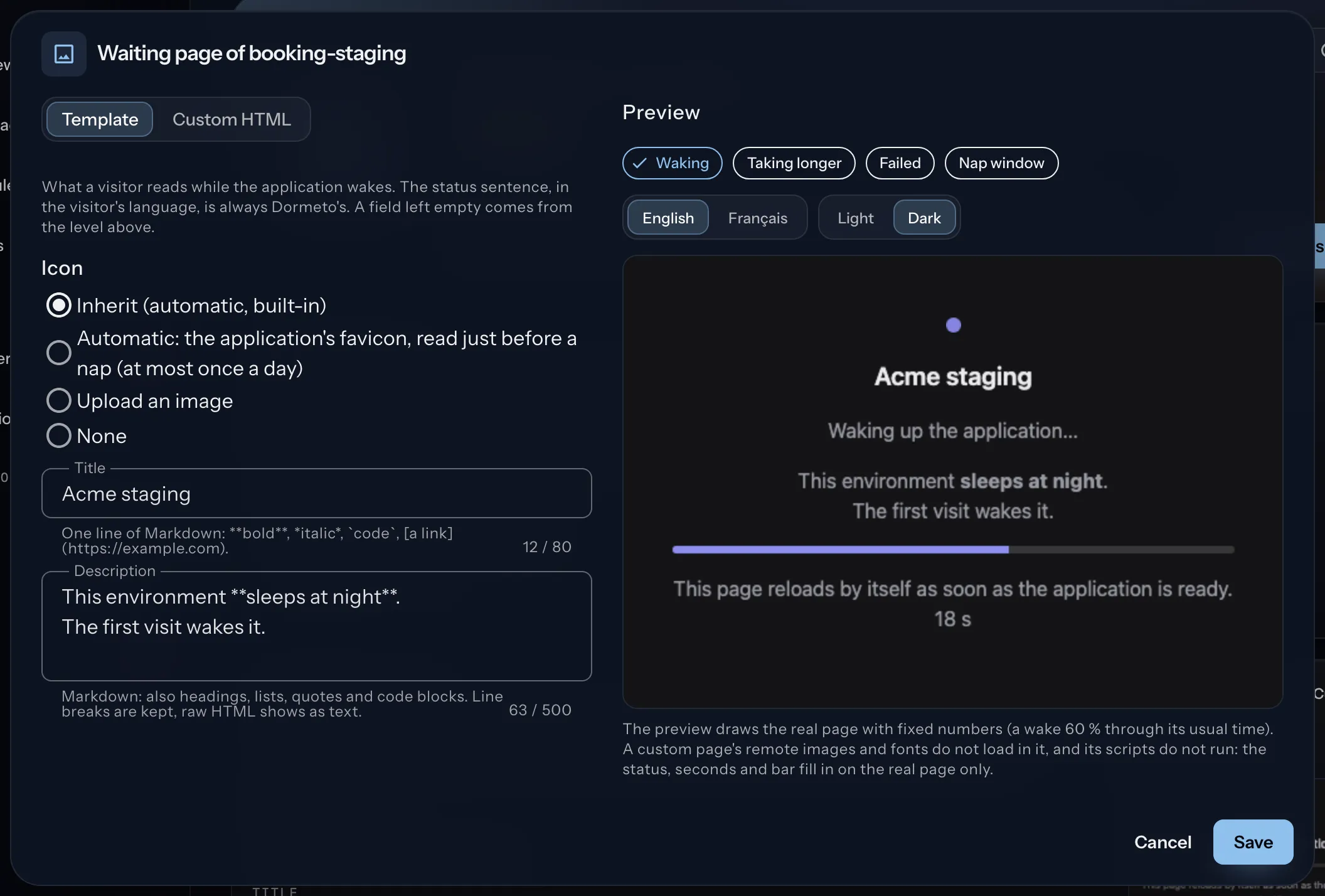
- Template. An icon, a title and a description, without code. The page keeps Dormeto's colors and layout, light and dark. The status sentence (waking, failed and why, napping on schedule until when) stays Dormeto's and cannot be changed. A template never hides what is true.
- Custom page. Your own full HTML page, uploaded. It still wakes the workload (Custom page).
The limits:
- A title: at most 80 characters, on one line.
- A description: at most 500 characters.
- An uploaded icon: at most 64 KiB, as PNG, JPEG, WebP, SVG or ICO.
- A custom page: at most 256 KiB.
The icon's type is taken from its bytes, not from its name.
From router 0.36.0, both take Markdown: **bold**, *italic*, `code` and links to https:// addresses. The description also takes headings, lists, quotes and code blocks. Line breaks are kept. Raw HTML shows as text.
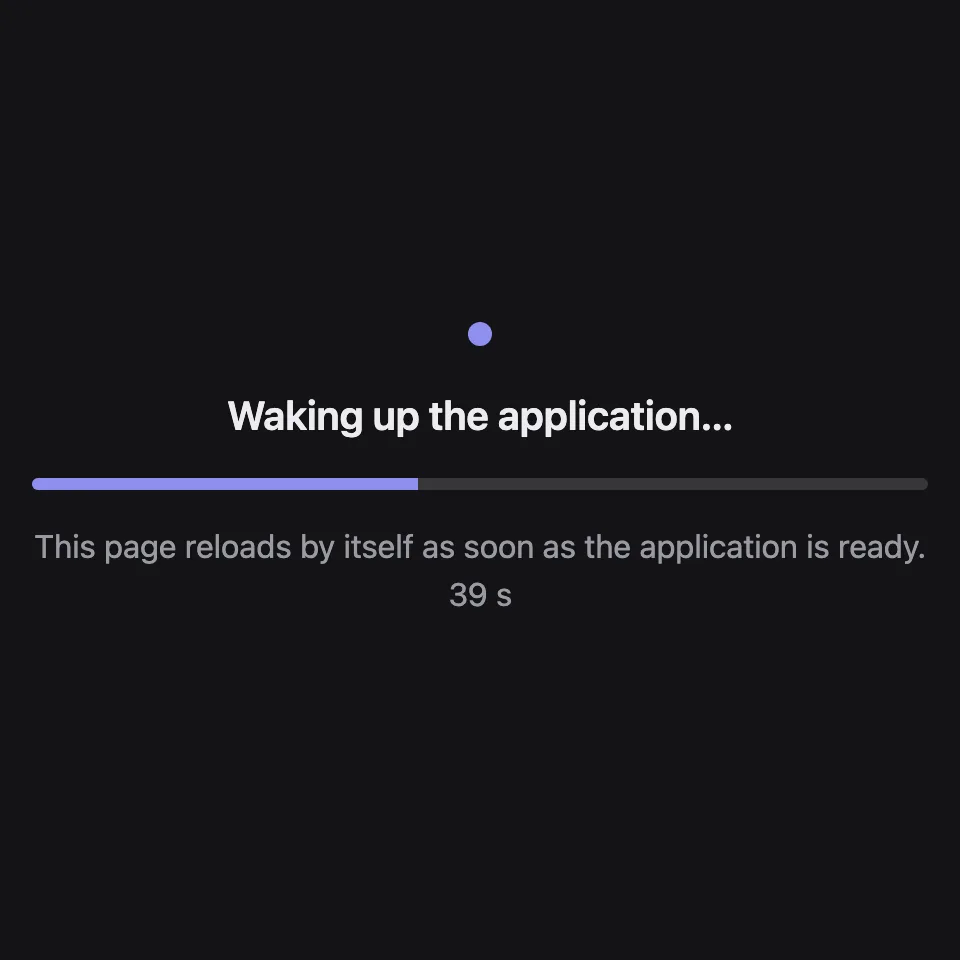
Built-in page, waking. Dormeto's own page. The progress bar fills toward the typical wake. 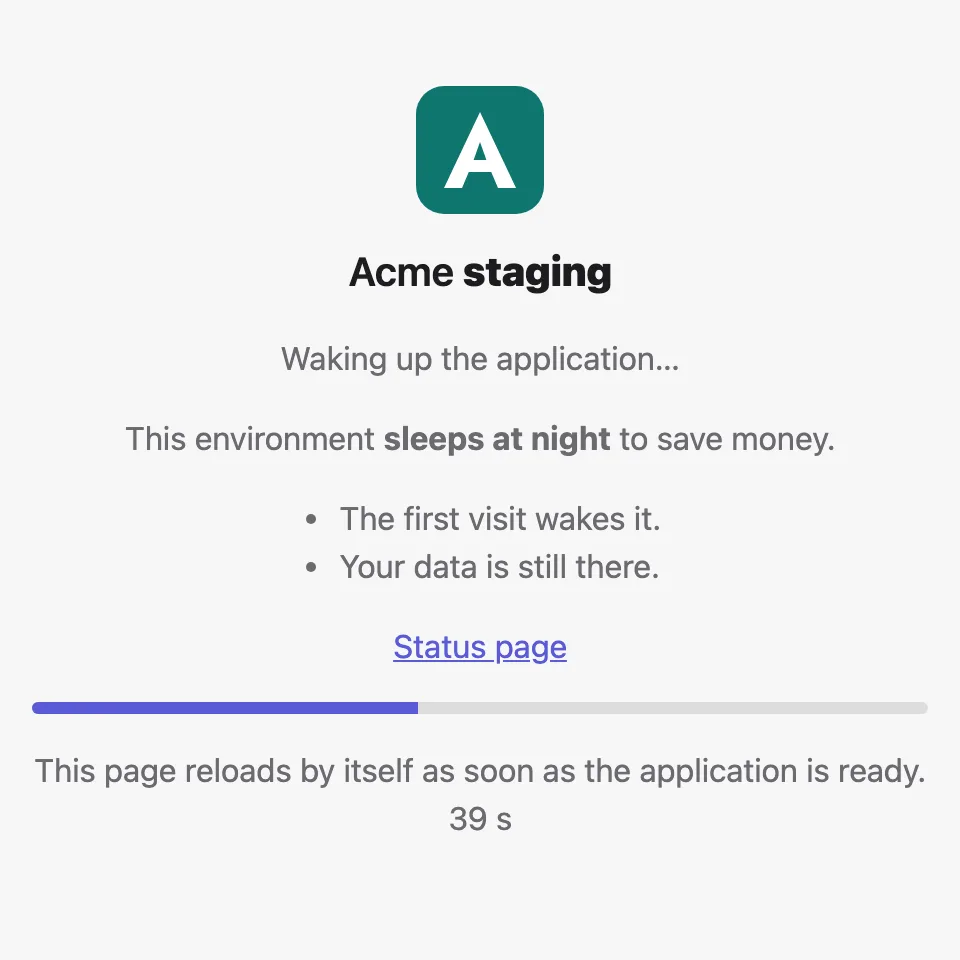
Branded template, light. An icon, a title and a Markdown description: bold, a list, a link. 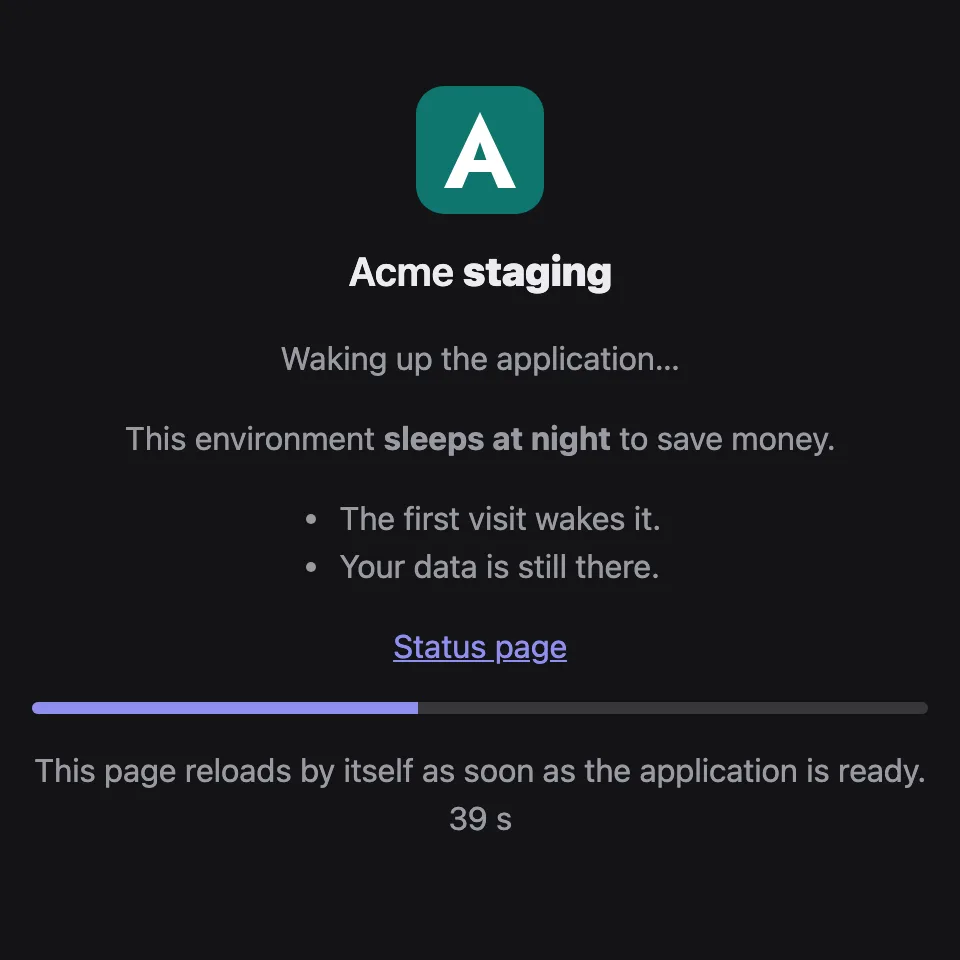
The same template, dark. It follows the visitor's color scheme. 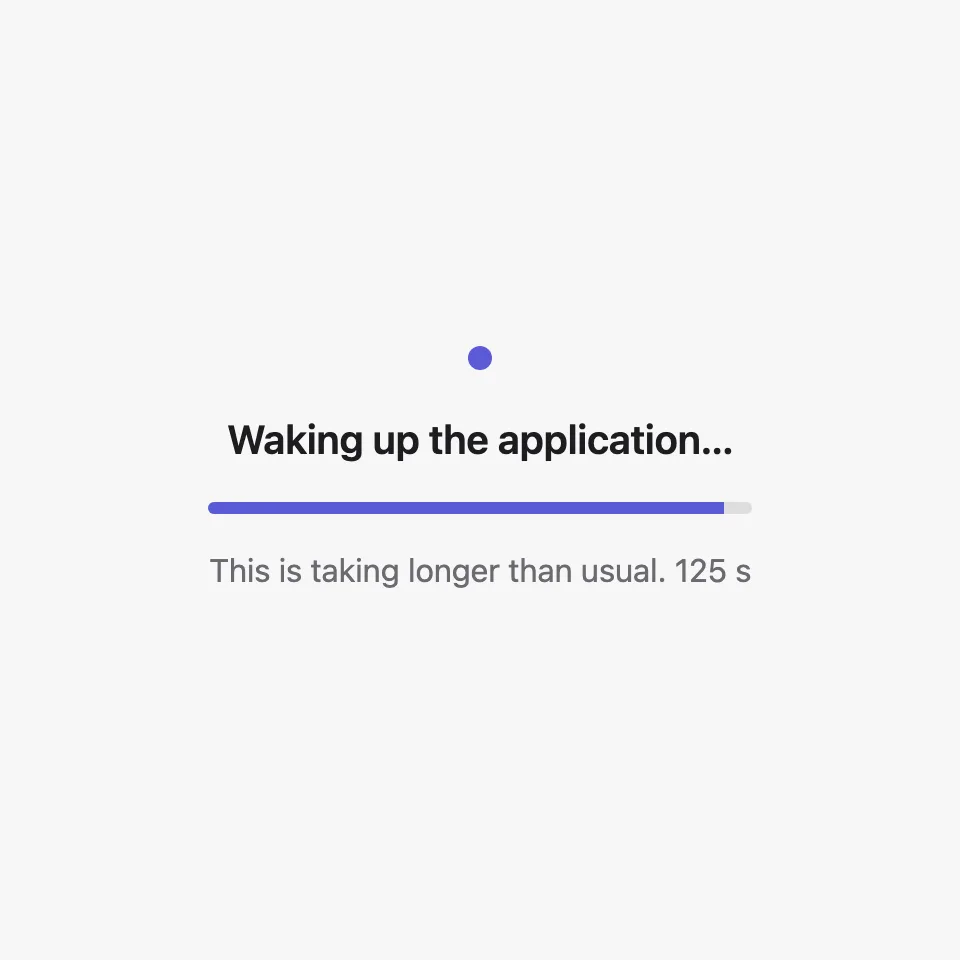
Taking longer. Past its typical time, the page says so. 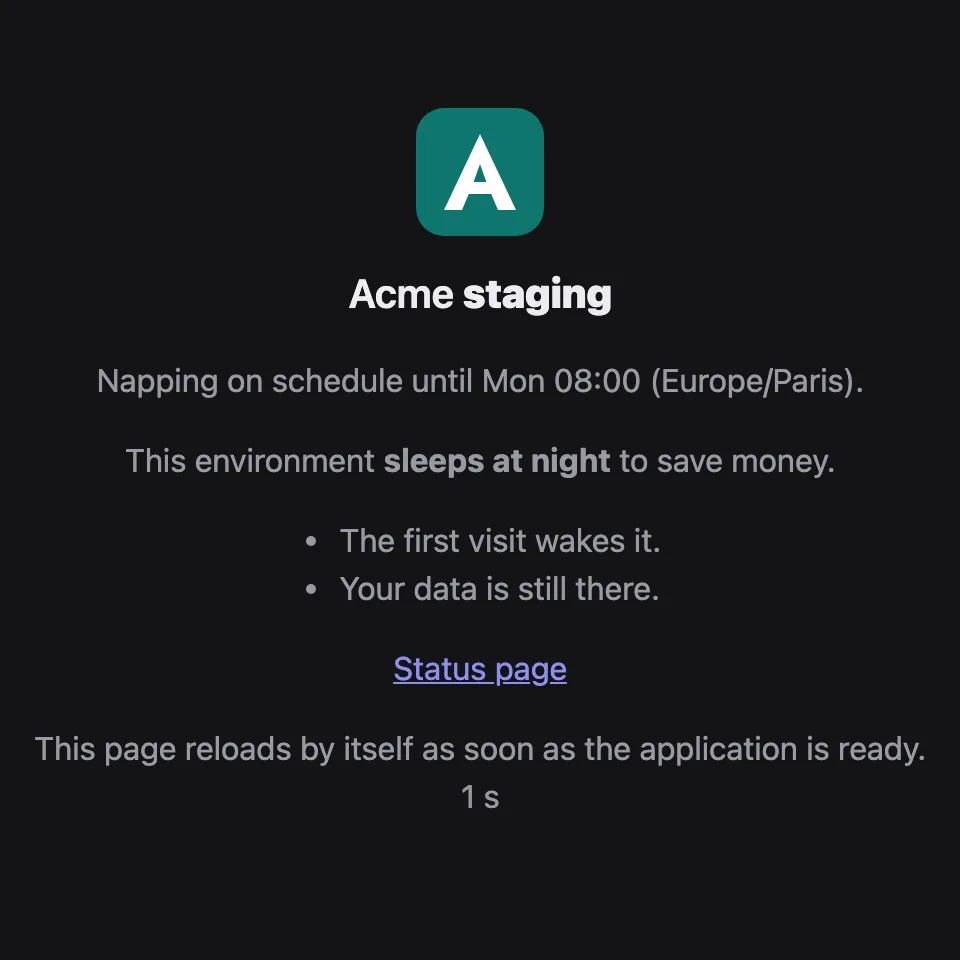
Nap window. The status says until when. No bar. 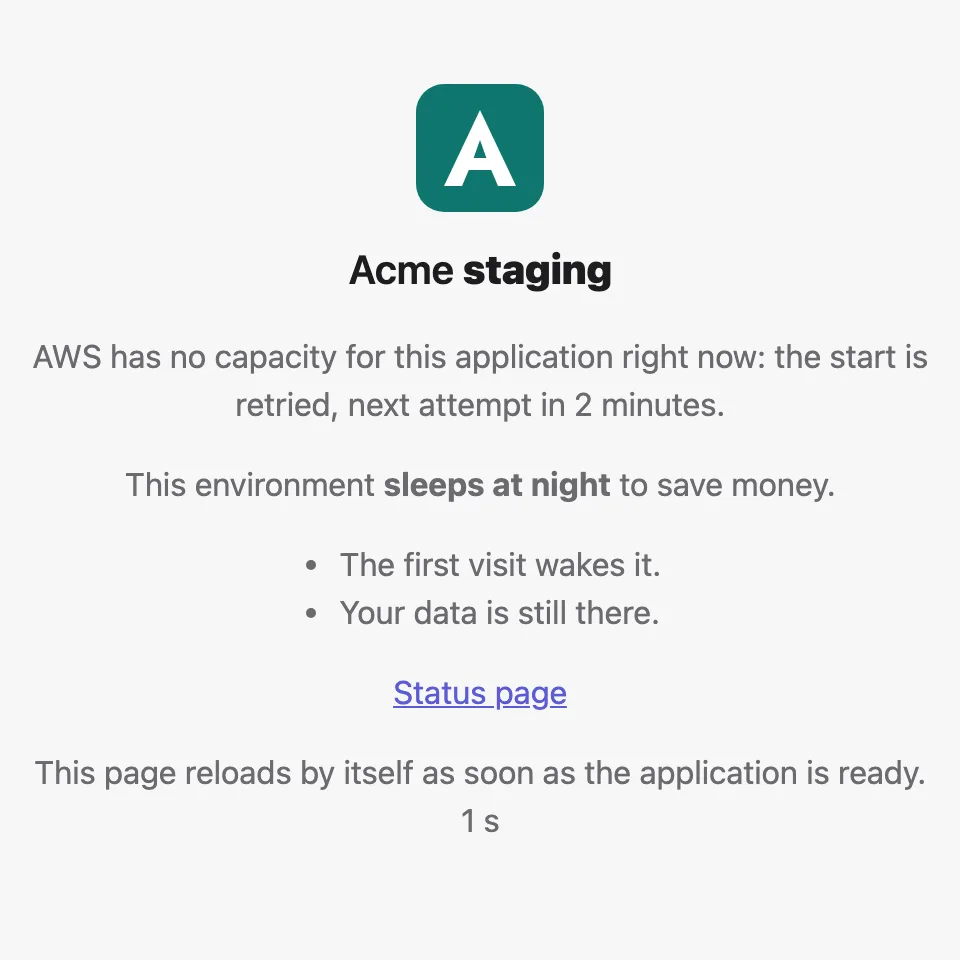
Failed wake. The status says why, and when the next attempt comes. No bar. 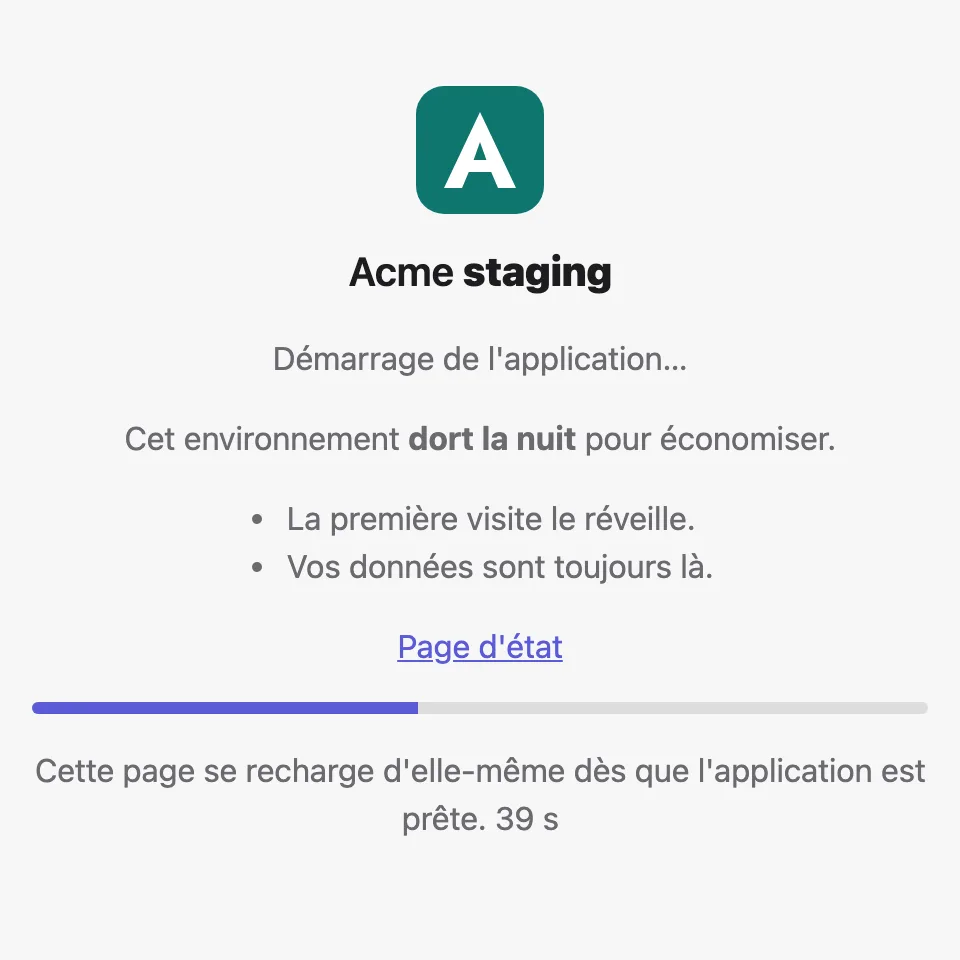
In French. Dormeto's sentences follow the visitor's language. Your words stay as you wrote them. 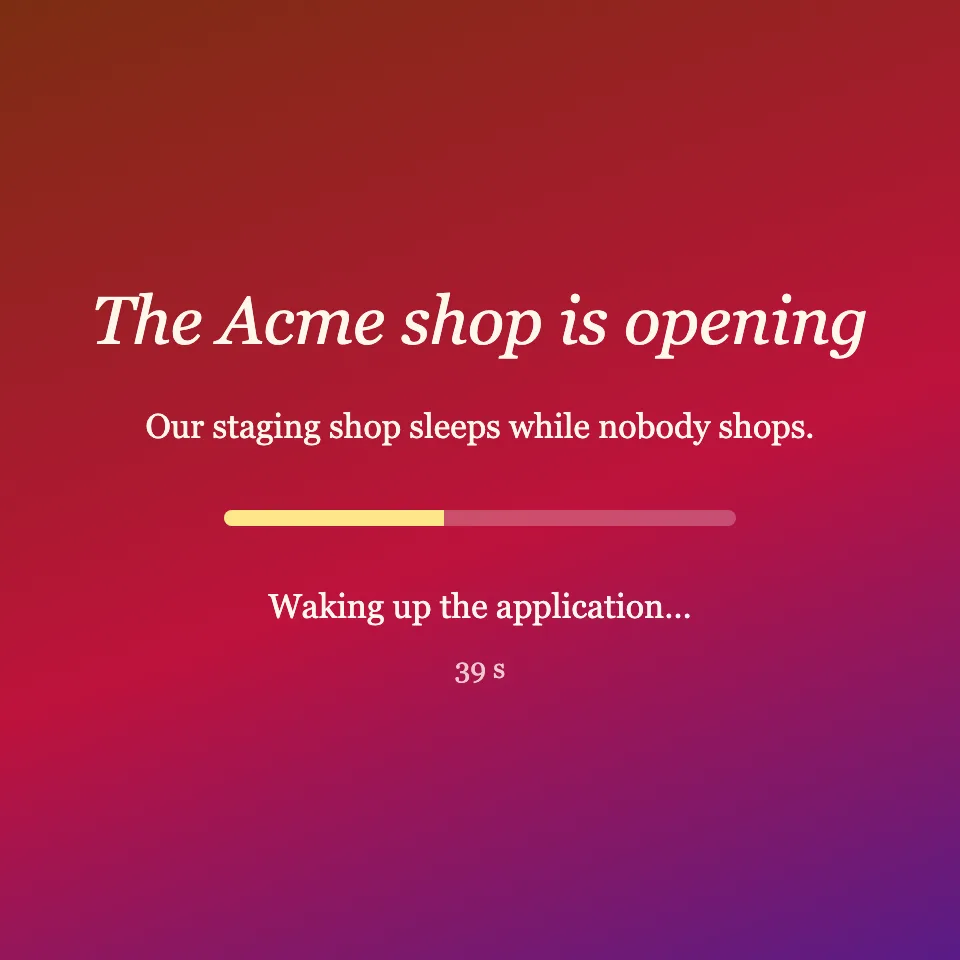
Custom page. Your own HTML. Its hooks show the status, the seconds and the bar.
Where it is set
Three levels. The most specific level that has a page decides its mode. For a template, each of the icon, the title and the description comes from the most specific template that has it. So a workload can change its title and keep the company's icon. A custom page at a level above is skipped when you look for a template's fields. One limit: a lower level can replace an inherited title or description, but cannot blank it. A blank field is refused and an absent one inherits. A workload that wants no description under an organization that sets one must write some other text. Only the icon can be None. With nothing set anywhere, the page is a template with the automatic icon.
- The workload. In Terraform,
waiting_pageof the workload module (Configuration). For a workload the manager onboarded, the Waiting page card in the workload's page, ordormeto aws workloads waiting-page. Operators and administrators set a template. Only administrators set a custom page. - The router. The Waiting page card in the router's page, or
dormeto aws routers waiting-page. Administrators. - The organization. Routers, then Workload defaults, the Organization card, or
dormeto aws settings waiting-page. Administrators. It applies to every router that reads the manager's settings.
Readers see the page and its card but change nothing. A workload written by Terraform refuses changes from the manager: set waiting_page in its module. A change at any level, the organization's included, reaches visitors within about a minute. The dashboard's edit dialog previews the page in each state (waking, taking longer, failed, nap window), in English or French, light or dark. In that preview a custom page's scripts do not run, and its remote images and fonts do not show.
The icon
A template's icon is Automatic (the default), Upload or None.
- Automatic is the application's own favicon. The router reads it while the workload is awake, just before a nap. So a workload has its icon from its first sleep. It reads it at most once a day per workload, whether the read worked or not. It adds at most about 3 seconds to the start of that nap. A read that fails never stops a nap. The router asks the application for its home page and looks for the page's icon (
icon,shortcut icon, thenapple-touch-icon). Otherwise it asks for/favicon.ico. That is one request for the page and one for the image, at most daily. Both show in the application's logs. The icon may be at most 32 KiB. A larger one can be uploaded instead. - Upload takes an image of at most 64 KiB.
- None shows Dormeto's dot and turns the favicon read off for the level's scope. That scope is every workload at the organization, a router's workloads, or one workload. A lower level that says Automatic turns it on again for its own.
The workload's card shows the cached favicon with its date, or why there is none. It says not read yet before its first nap. It says not read when the page is custom, the icon is None or an image is uploaded. Otherwise it gives the reason the read failed. There is none, and an upload is the answer, when:
- the workload sits behind an internal load balancer, which the router cannot reach.
- its rules have no host name that is all its own: a wildcard host, or a rule that also tests a path or a header. A request for
/could belong to another workload. - its listener is
http:only. - the application hides its favicon behind a login.
The visitor's language
Dormeto's own sentences come in English or French, read from the visitor's Accept-Language header. The first language Dormeto supports wins (fr-CA is French). With no header, or none supported, the page is in English. Your title and description show as you wrote them. API clients still get the same JSON, in English. Behind CloudFront, forward the Accept-Language header to the load balancer (the managed origin request policy Managed-AllViewer does).
The progress bar
The router keeps the duration of the workload's last 10 completed wakes and uses their median. While the workload wakes, the page shows a bar filling toward that typical time, never past 95%. It also shows the seconds since the wake started. Once the wake takes longer than usual, the page says so. With no wake recorded yet there is no bar, only the seconds. A failed wake or a nap window shows no bar. A page that shows a bar keeps it at 100% for the moment the route is ready.
Custom page
A custom page is your own HTML, answered with the same status code and headers as Dormeto's page. It comes without Dormeto's content security policy, which would break it. It is a file of UTF-8 text, not blank, of at most 256 KiB. Put images inline or at your own addresses.
It still wakes the workload. Dormeto adds a <noscript> refresh and its script at the very start of the document. They come after any byte order mark, white space, comments, XML declaration and the doctype that come first. The script starts waking at once, whatever your page holds. It reloads the page into the application when it is ready. Your doctype stays first, so the browser keeps standards mode. The browser's parser puts the block in the head it builds, then reads your <html> and <head> tags. The attributes of your <html> are kept. Those of your <head> are dropped, because the document has its head already. Put them on <html> or <body>. To show the state, mark elements with these hooks. The script looks them up at each update, so an element your own JavaScript renders later works too:
| In your HTML | What the script does |
|---|---|
data-dormeto="status" | Its text becomes the status sentence, in the visitor's language. The text is rewritten at each update, so put nothing in it you need to keep. |
data-dormeto="elapsed" | Its text becomes the seconds since the wake started, or since the page opened, with their unit: 3 s. Do not write the unit yourself. |
data-dormeto="progress" | Its style.width becomes the bar's percentage, and its hidden attribute is removed once a bar applies. |
the dormeto:state event | Fired on document at each probe, with detail: state, failure, retryAt, napUntil, elapsedMs and typicalMs. |
A page with no status hook still wakes the workload, but shows no state. The dialog and the CLI warn about it, and about a Content-Security-Policy meta tag in your page. Dormeto's script comes first, so a script-src there does not stop it. But a connect-src (or a default-src) that does not allow your own address blocks its requests. The workload may wake, yet the page never learns it and visitors stay stuck on it. A warning does not refuse the page.
<!doctype html>
<html lang="en">
<head>
  <meta charset="utf-8">
  <title>Acme staging</title>
  <style>
    body { font-family: sans-serif; text-align: center; padding-top: 20vh; }
    .bar { width: 16rem; height: 6px; margin: 1rem auto; background: #ddd; }
    .bar div { height: 100%; background: #4589ca; }
  </style>
</head>
<body>
  <h1>Acme staging is waking up</h1>
  <p data-dormeto="status">Waking up the application…</p>
  <p><span data-dormeto="elapsed">0 s</span></p>
  <div class="bar"><div data-dormeto="progress" hidden></div></div>
  <script>
    document.addEventListener('dormeto:state', (e) => {
      if (e.detail.state === 'FAILED') document.title = 'Acme staging: problem';
    });
  </script>
</body>
</html>
Security
A custom page runs on the application's own address. Its scripts can read that site's cookies and call its API as the visitor. That is why, in the dashboard, only administrators may set, replace or clear a custom page, at every level. An operator who can change a workload cannot. The CLI and the API do not make that check themselves. A caller of the manager's /iam/ routes counts as an administrator. So an IAM principal allowed to call them can set a custom page. Give those routes only to people you would trust with your application's users' sessions. Offboarding a workload removes its waiting page with it, a custom page included, whoever offboards it. Dormeto's audit log records a change with the page's size and checksum, never its content. It does the same for a custom page a change replaces or removes. A template never runs your code. The title and description are escaped text. The icon shows only inside an image.
In Terraform
The workload module's waiting_page writes the page without the manager. null (the default) writes nothing, and removing it removes the page it created.
module "shop" {
  source = "…/workload"
  # …
  waiting_page = {
    mode        = "template"
    icon        = "data:image/png;base64,${filebase64("${path.module}/logo.png")}"
    title       = "Acme shop (staging)"
    description = "This environment sleeps at night.\nThe first visit wakes it."
  }
}

# or a custom page:
#   waiting_page = { mode = "custom", html = file("${path.module}/waiting.html") }
If you move a workload to Terraform while a page set from the manager is on it, clear that page from the manager first. The workload then refuses its changes. Terraform's own page replaces it afterwards.
Fixed defaults
These hold for every workload the manager onboards. They are not settings in the manager yet (Coming next).
Timings
- During a wake, requests are held up to 60 seconds. Then they get the waiting page, which reloads by itself.
- A wake fails after 10 minutes. With a companion database, after 30 minutes. For a Kubernetes workload, after 5 minutes.
- The idle check runs every 5 minutes, on the clock's 5-minute marks.
When a wake fails
- A failure says why:
capacity,quota,permission,configuration,unhealthy,throttled,timeout,cluster(Kubernetes) orunknown. The workload's page and the waiting page show it, with the next attempt. - An EC2 or RDS start refused for capacity is tried again within the wake. Retries come after 30 seconds, 60 seconds, then every 120 seconds. Auto Scaling and ECS keep trying on their own.
- After a failed wake, the next request tries again once 60 seconds have passed. The delay doubles after each failure in a row, up to 30 minutes. In Terraform,
failed_retry_secondssets the first delay, from 10 to 600 seconds. - A failed workload whose backends run without a healthy target is stopped after its idle window, unless paused. So a failed wake never keeps costing money.
Examples
Each example gives the values to enter in the Onboard dialog.
A website with its Aurora database
Why: the database costs as much as the application, and sleeps just as well.
- Companion databases:
cluster:shop-aurora.
A nap stops the application, then the Aurora cluster, without waiting for it. A wake starts the cluster, waits until it is available, then starts the application. Allow a few minutes: the wake has 30 minutes before it fails.
AWS restarts a stopped database after 7 days. While the workload sleeps, the router stops it again. For an RDS
instance, give its identifier alone, such as shop-db. Read replicas and Aurora Serverless v1 are left alone.
An API woken only by browsers
Why: bots and scanners call the API's public address all night, and wake it. Real users come through the web app, in a browser.
- Wake mode: Browser.
A plain request gets the waiting page at once, or a JSON answer naming the wake header. Nothing starts. A browser runs the waiting page's script, which wakes the workload. Scripts and API clients wake it with the header:
curl -H 'x-dormeto-wake: 1' https://api.example.com/healthA request arriving during a wake is held, as in Any mode. Bots that do not run JavaScript never wake it.
Scarce instance types
Why: at 08:00, many teams start the same instance type. Now and then, AWS has none left in the zone.
- Fallback instance types:
m6i.large, m5.large, t3a.large.
A start refused for capacity is tried again within the wake. The instance may then start on the next type of the list, in order. At its next nap, it gets its own type back.
Meanwhile, the workload's page says On fallback instance types. Only the instance type changes. In Terraform,
the same list is the workload module's fallback_instance_types.
A long idle window for a back office
Why: staff use the back office in bursts through the day. With 15 minutes, they would wait for a wake several times a day.
- Idle window:
120minutes.
The workload naps only after 2 hours without a request: fewer waits, a little less saved. Its Idle window card replays its last 14 days of requests against windows from 5 to 120 minutes. It shows what each would save a month, and how often visitors would wait.
To change the window later, offboard and onboard again. To keep it asleep at night as well, add a schedule (Schedules).