Docs
Schedules
A schedule keeps a workload awake or asleep at set hours of the week. Whoever may wake and nap a workload can set one. In the dashboard: the Schedule card of the workload's page, and Schedules under Fleet.
21 min readManager 0.21.0
What a schedule is
A schedule belongs to one workload. It holds up to five things:
- Awake windows keep the workload awake, at office hours for example.
- Nap windows keep it asleep, at night for example, whatever traffic comes.
- Exception dates are days the windows skip, such as public holidays.
- A maximum nap wakes a workload that has slept too long, for its maintenance.
- A join value says how short a gap between two windows of one kind counts as none.
Schedules need manager 0.16.0 and routers 0.31.0. A router before 0.31.0 refuses them: upgrade it from Routers. The calendar needs manager 0.17.0.
What it overrides
A schedule overrides the idle behaviour, while a window lasts:
- During an awake window, idle naps do not happen.
- During a nap window, requests do not wake it. With
"wake": "header", only a request with the header does. - Outside its windows, the idle rules apply. It naps when idle and wakes on the next request.
- A short gap between two windows of one kind is not outside: Joined windows.
Pauses and the manager's own commands can win over a schedule: What wins over a schedule.
A complete schedule
The API takes a schedule as JSON, and the CLI sends the same JSON from a file. This one uses the fields most schedules need. Recurrences and joined windows add more.
{
  "timeZone": "Europe/Paris",
  "windows": [
    {
      "kind": "awake",
      "days": [
        "mon", "tue", "wed",
        "thu", "fri"
      ],
      "start": "08:30",
      "end": "19:00"
    },
    {
      "kind": "nap",
      "days": [
        "mon", "tue", "wed",
        "thu", "fri"
      ],
      "start": "20:00",
      "end": "07:00",
      "wake": "header"
    },
    {
      "kind": "nap",
      "days": ["sat"],
      "start": "00:00",
      "end": "00:00",
      "wake": "never"
    }
  ],
  "exceptions": ["2026-12-25", "2027-01-01"],
  "maxNapDays": 7
}- Awake from 08:30 to 19:00, Monday to Friday.
- Asleep on weeknights, from 20:00 to 07:00. A request with the wake header still wakes it.
- Asleep all Saturday. No request wakes it.
- Sunday has no window: the workload naps when idle and wakes on requests.
- No window on 25 December and 1 January.
- Woken for maintenance after 7 days asleep.
The Schedules calendar
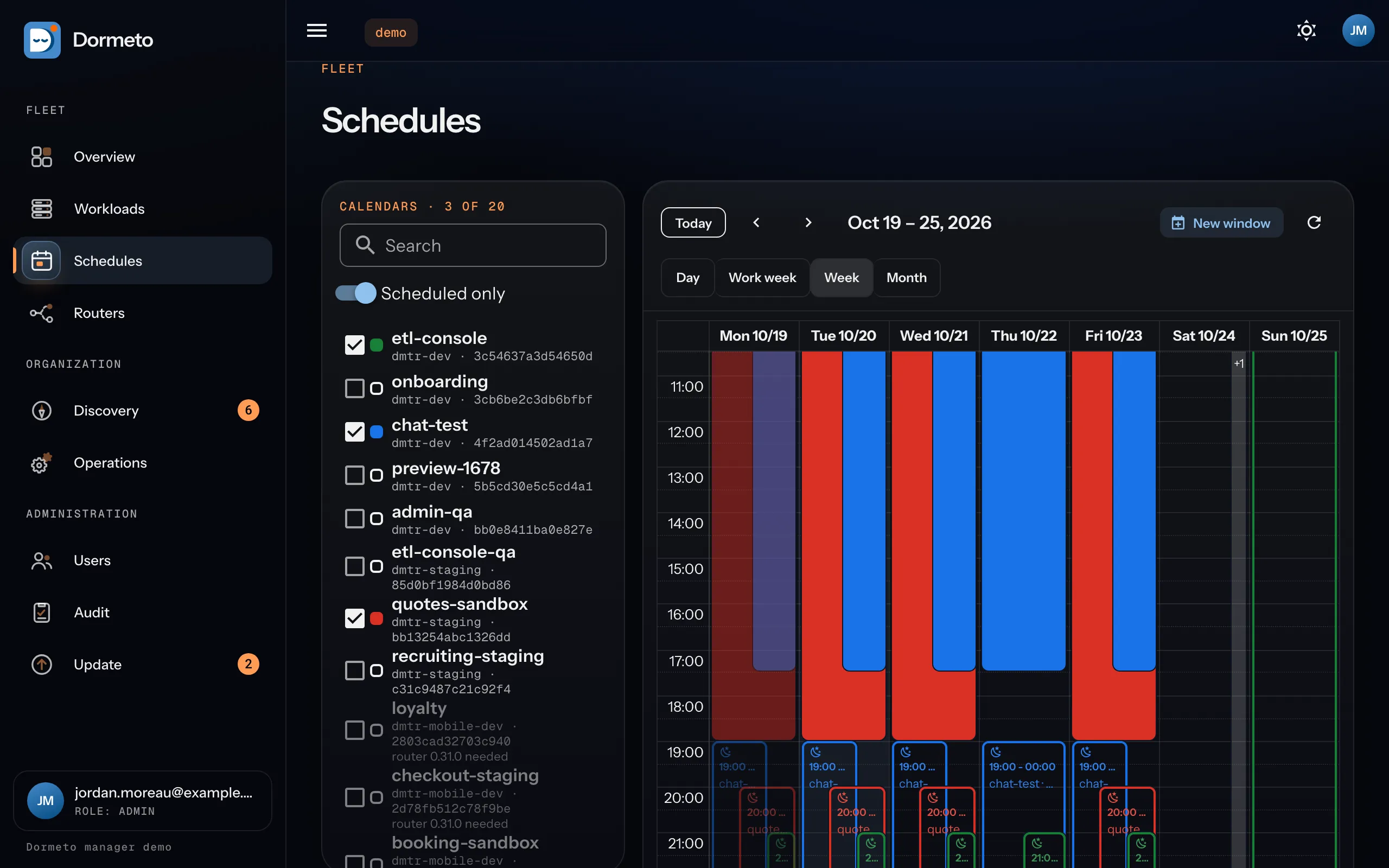
From manager 0.17.0, Schedules under Fleet shows schedules as calendars. Every role that sees Workloads sees it.
Enabling calendars
- The panel on the left lists the workloads you can read. Search them by name, id or router.
- Scheduled only, on by default, hides the workloads without a schedule.
- Tick a workload to show its calendar. Each one gets its own color. Up to 20 can be on at once.
- Your calendars and their colors are kept in your browser.
- A workload on a router before 0.31.0 is listed but disabled: "router 0.31.0 needed".
Views
- Day, Work week (Monday to Friday), Week and Month. Today and the arrows move through time.
- Times are in your browser's time zone. When a schedule has another zone, a window's tooltip gives its times there.
- Awake windows are filled with the workload's color. Nap windows are outlined in it, with a moon.
- A marker shows when the maximum nap of an asleep workload wakes it for maintenance.
- Windows already over are dimmed. An exception date shows no window.
- The view and the date are in the page's address: a link opens the same range.
Drawing a window
In the Day, Work week and Week views, drag over a range of up to 24 hours, in 15-minute steps. The New window dialog opens. The New window button opens it too, from the keyboard.
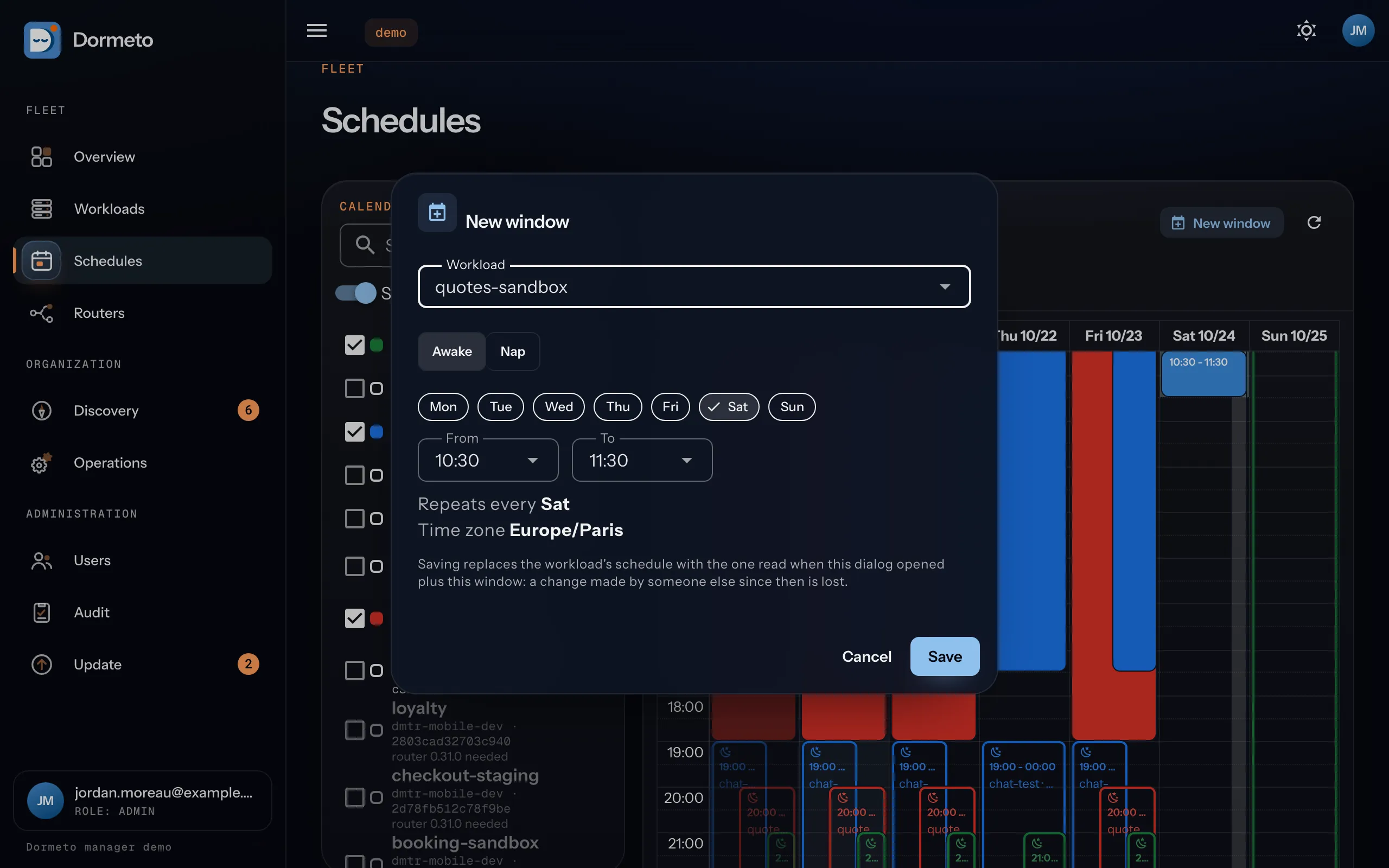
- Workload: one of your enabled calendars that you may edit.
- Awake or Nap. For a nap, Wake says whether the header wakes it.
- The days, From and To. The window repeats every week: "Repeats every Sat".
- The time zone is the one of the workload's schedule. A first schedule takes your browser's.
Save adds the window to the workload's schedule. It saves the schedule as it was when the dialog opened, plus your window. A change someone else made in the meantime is lost. If the router refuses the schedule, for an overlap or a limit, the dialog says why and stays open.
In the Month view, select days instead. Each selected weekday gets a 24-hour window, a nap by default. Select Saturday and Sunday to put the weekend to sleep in one gesture. In the other views, a drag longer than 24 hours is refused.
Changing or removing windows
Click a window to open the workload's Schedule dialog. Edit or remove its windows, its exception dates and its maximum nap there. Clear schedule removes it all, after a confirmation.
If you may not edit the workload, the click opens its page instead.
In the Schedule dialog, each window has a tab that starts with its kind. Awake is green with a sun, Nap blue with a moon. The + buttons after the tabs add a nap or an awake window.
With the manager that carries router 0.36.0, drag an item to move it. Drag its top or bottom edge to change its start or end. In the Day and Week views, the edges show a handle on hover.
For a window that repeats, the dashboard asks on the drop:
- Only this occurrence: the series skips that date, and a window of that one date runs at the new times.
- The whole series: every occurrence moves by the same offset, on the schedule's clock.
The question says when a choice can't be made:
- The series of a cron window: its expression says when it starts.
- A series whose occurrences would not all move by that offset.
- A move to another day, on a schedule with exception dates: it would change which occurrence they skip.
- One occurrence of a cron window that starts more than once that day.
- A window longer than 24 hours.
- This occurrence alone, on a router before 0.36.0.
A bar of joined windows moves both. Its top edge changes the first window, its bottom edge the last.
Each change starts from a fresh read of the schedule. Cancel puts the item back.
Windows
Days and times
kind:awakeornap.days: the days the window starts, frommontosun, each once.startandend:HH:MM, in steps of 5 minutes.08:30is accepted,08:32refused.timeZone: the zone of every time, an IANA name such asEurope/Paris. An offset such as+01:00is refused.
Overnight and 24 hours
- When
endis at or beforestart, the window ends the next day.20:00to07:00onmonruns from Monday evening to Tuesday morning. - Equal times last 24 hours.
00:00to00:00onsatis all of Saturday. - Times stay wall-clock times when the clock changes. A start in a skipped hour applies at the first minute after it. A start in a repeated hour applies the first time.
Limits
- At most 100 windows (20 before router 0.36.0) and 100 exception dates.
- An awake window and a nap window of one workload may not overlap: Overlaps.
- An unknown field is refused. Each refusal names its field.
Awake windows
- When an awake window starts, an asleep or failed workload wakes, as with the manager's Wake.
- While it lasts, the workload never naps on idle.
- The manager's Nap still works during the window. The workload then sleeps until the next request or the window's next start.
Nap windows and the wake header
- When a nap window starts, an awake workload naps.
- While it lasts, a request that would wake gets the waiting page instead. The page says when the nap ends.
- With
"wake": "header", a request carryingx-dormeto-wake: 1still wakes it. With"never", the default, no request does. - The built-in filters come first:
HEADrequests, bots and scanners never wake it. - The manager's Wake always works.
- When two nap windows overlap,
neverwins overheader.
Scripts can read when the nap ends. The waiting page's JSON carries napUntil. The response carries the x-dormeto-nap-until header. A nap with no known end, such as a chain of joined windows, gives at and local as null, and the header says unknown.
Example: Nights and weekends asleep, with the header.
Overlaps
The rule is about one workload's windows of different kinds. An awake window and a nap window may not overlap. Windows of the same kind may.
Two workloads✓ Allowed
The rule applies to the windows of one workload. These two never conflict, even drawn together on the calendar.
Awake + awake✓ Allowed
They count as one longer window.
Nap + nap✓ Allowed
They count as one longer window too. While one active window says never, requests do not wake it.
Awake + nap✕ Refused
Refused on save. The router names both windows and the first time they meet: Monday 16:00 to 18:00.
Touching✓ Allowed
Awake 08:00 to 12:00, then nap 12:00 to 20:00. One ends as the other starts: that is not an overlap.
A short gap✓ Joined
Nap until 12:00, nap again from 12:10. The gap is within the default 15 minutes, so they read as one. A request in it does not wake the workload.
Different dates✓ Allowed
An awake window until 30 June, a nap window from 1 July, at the same hours. They never meet.
With a recurrence✕ Refused within 400 days✓ Allowed beyond
The check looks 400 days ahead. A meeting further out is not refused, and the occurrence that started last applies.
The router checks when you save. A refusal reads: windows[1]: the nap window overlaps the awake window windows[0] (mon 18:00–19:00).
- Two plain weekly windows are compared over the whole week.
- With a recurrence or a range, they are compared date by date, skipping exception dates (The range).
- An overnight window counts up to its end, the next morning.
Joined windows
From router 0.36.0, two windows of the same kind separated by a short gap count as one. So a workload is not woken or napped for the gap. Without this, a visitor in a 10-minute gap would wake it, and the second nap window would nap it again. This applies to schedules already saved too: set 0 to keep a gap.
joinMinutesis the largest gap that joins: a whole number from 0 to 120, a multiple of 5.- The default is 15. A gap of exactly 15 minutes joins. 0 never joins.
- The gap is elapsed time, so a clock change counts as it passes.
Where it is set
The most specific level that sets it wins:
- The workload.
joinMinuteson its schedule, besidemaxNapDays. In the dashboard, it is in the Schedule dialog. - The router. Its settings, beside
hibernate. Use the router's page, ordormeto aws routers settings <router> --join-minutes 30. - The organization.
workloads.joinMinutesin the manager'ssettings.json. Use the Routers page's defaults, ordormeto aws settings set --join-minutes 30. The router reads it within 5 minutes. - The default. 15 minutes.
A level that cannot be read counts as unset. On Google Cloud, only the workload's level and the default apply.
What does not join
- Two windows of different kinds.
- A gap where a window of the other kind starts.
- A start removed by an exception date or a range.
A nap of 00:00 to 23:45 every day therefore never ends. With wake: never and no maximum nap, no visitor can wake it. Set 0 to keep the gap.
The check on save still compares windows as written, so a gap never causes a refusal (Overlaps).
One limit: the second start is still a new start. So a manager's Nap or Wake taken in between lasts until it.
Recurrences
From router 0.36.0, a window can repeat on more than chosen weekdays, within a range of dates. A window without the new fields reads as before, but for joined windows. A router before 0.36.0 refuses them as unknown. There is nothing to apply again in your accounts.
The rest works as for weekly windows. Exception dates, the maximum nap, pauses, the wake modes and clock changes apply to each occurrence.
Patterns
repeat replaces days: a window has one or the other.
- Daily: every N days.
{ "pattern": "daily", "interval": 3 }counts days fromfrom. - Weekly: every N weeks, on chosen days.
{ "pattern": "weekly", "interval": 2, "days": ["mon", "thu"] }counts weeks, Monday to Sunday, from the week offrom. - Monthly, on a day:
{ "pattern": "monthly", "interval": 3, "day": 15 }counts months from the month offrom.dayis 1 to 31. A day past a month's end falls on that month's last day: 31 falls on 30 April. - Monthly, on a weekday:
{ "pattern": "monthly", "nth": 1, "weekday": "mon" }is the first Monday.nthis 1 to 4 for the first to the fourth, or -1 for the last.weekdayismontosun. - Yearly: monthly with
"interval": 12.fromgives its month. - Do not repeat: a one-off window. Write it as daily, with
fromanduntilon one date. The dashboard shows it as "Once on 4 Jan 2027".
interval is 1 to 99, 1 by default. Above 1, from is required: it anchors the count.
This schedule uses two patterns:
{
  "timeZone": "Europe/Paris",
  "windows": [
    {
      "kind": "nap",
      "start": "20:00",
      "end": "07:00",
      "repeat": {
        "pattern": "weekly",
        "interval": 2,
        "days": ["mon", "thu"]
      },
      "from": "2027-01-04",
      "until": "2027-06-30",
      "wake": "header"
    },
    {
      "kind": "awake",
      "start": "08:00",
      "end": "18:00",
      "repeat": {
        "pattern": "monthly",
        "interval": 3,
        "nth": 1,
        "weekday": "mon"
      },
      "from": "2027-01-01"
    }
  ]
}
The nap runs every second week, on Monday and Thursday nights, from 4 January to 30 June 2027. A request with the wake header still wakes it. The awake window runs on the first Monday of every third month.
A one-off window, on one date:
{
  "timeZone": "Europe/Paris",
  "windows": [
    {
      "kind": "nap",
      "start": "09:00",
      "end": "17:00",
      "repeat": { "pattern": "daily" },
      "from": "2027-01-04",
      "until": "2027-01-04"
    }
  ]
}
Cron expressions
A window can repeat on a cron expression instead:
{
  "timeZone": "Europe/Paris",
  "windows": [
    {
      "kind": "awake",
      "repeat": {
        "pattern": "cron",
        "cron": "30 8 * * 1-5",
        "minutes": 630
      }
    }
  ]
}
This keeps the workload awake from 08:30, Monday to Friday, for 630 minutes: until 19:00.
- The pattern
cronreplacesstartandendtoo, and takes nointerval. minutesis how long each occurrence lasts, in wall time. It is a multiple of 5, from 5 to 10080 (7 days).- An expression has crontab's five fields:
minute hour day-of-month month day-of-week. It has at most 200 characters. - Each field is
*, a number, a rangea-b, a step*/sora-b/s, or a comma list of those. - Months also take
JANtoDEC, weekdaysSUNtoSAT, in any case. Weekdays are 0 to 7: 0 and 7 are both Sunday. ?means*, as a whole day field only.- With both day fields restricted, either one matches, as in crontab. A field is restricted unless it is exactly
*or?. - A day field starting with
*, such as*/2, goes alone. Beside the other day field it is refused: cron versions read that differently. - Every minute must be a multiple of 5, as schedule times are. So
*in the minute field is refused.*/5and0,30are accepted. cron(...), six fields,L,Wand#are refused. EventBridge's weekday 1 is Sunday, so its expressions would not read the same here.5/5and reversed ranges such as5-0are refused.FRI-SUNis Friday to Sunday. An oversized step such as*/100gives the first value.- An expression that never matches, such as
0 8 31 2 *, is refused.0 8 29 2 *is accepted: it matches in leap years.
A start every few minutes applies again each time. Each start is a new occurrence. So a manager's Nap or Wake lasts only until the next start: 5 minutes at most with */5. An awake window that starts this often also blocks naps. The router does not refuse it, and the dashboard warns about it.
The range
fromanduntilare local datesYYYY-MM-DD, in the schedule's zone. Each is optional and works alone. Both days are included.- No occurrence starts before
fromor afteruntil. One started onuntilruns to its end. - Without
until, the window has no end date. untilbeforefromis refused.- A window's end time stays required: a start with no end time is not possible. "End after N occurrences" does not exist.
Overlaps change too. As soon as either window of a pair has from, until or repeat, the router compares them day by day, in wall time. It looks at the next 400 local days, from the later of today and their from dates. The refusal gives the first date: windows[1]: the nap window overlaps the awake window windows[0] (2027-03-15 08:00–12:00). Beyond those 400 days an overlap is not refused, and the occurrence that started last applies.
In the dashboard, the API and the CLI
The dashboard's helper comes with the manager that carries router 0.36.0.
- The window's editor has a Repeats select: Weekly, the default, Do not repeat, Daily, Monthly, Yearly or Cron expression.
- Beneath it, you set what the pattern needs. That is every N, the day chips, "on day N" or "on the first to last weekday". For Cron, it is the expression and a duration.
- The range is a start date and an end: No end date, the default, or a date.
- A sentence says the window back, and the next 5 occurrences show in the schedule's zone. So you can check a cron expression before saving.
- A cron expression that does not parse says why, under its field, and Save stays off.
- A calendar selection still starts a weekly window. The week and month views draw whatever repeats.
- The API and
dormeto aws workloads schedule set --filetake the same JSON.
Exception dates
exceptionslists local dates asYYYY-MM-DD, at most 100.- A window that starts on one of these dates does not apply. Nap windows are skipped too.
- A window that started the day before runs to its end: a night's nap still ends in the morning.
- In the Schedule dialog, the field is Dates without a window.
- With router 0.36.0, a window takes its own
exceptionstoo, at most 100. Only that window skips them. - Moving one occurrence alone writes them. The window's tab shows them under Dates it skips.
Example: A holiday.
Ended windows
- With router 0.36.0, a window leaves its schedule when no valid occurrence ended within the last year, and none is to come.
- Its pattern, its range and the dates without a window decide. A window without
untilnever leaves. - Dates without a window as old leave too, the schedule's and each window's.
- A schedule left with no window and no maximum nap is removed.
- The organization sets the delay:
workloads.endedWindowDaysin the manager'ssettings.json, from 30 to 3650 days. 0 keeps them. - Use the Routers page's defaults, or
dormeto aws settings set --ended-window-days 90. - The router removes nothing while it has never read these settings, and nothing while a window is active.
- A schedule saved since the router read it stays as saved.
Maximum nap
maxNapDays, from 1 to 60, is the longest a workload sleeps.- Past it, the workload is woken for maintenance: patches, agent updates and certificate renewals get their turn.
- If no traffic comes, the idle check naps it again after its idle window.
- A maintenance wake never counts as traffic. The timeline says "the maximum nap (a maintenance wake)".
- A schedule may hold a maximum nap alone, without any window.
Example: Patching only, with a maximum nap.
What wins over a schedule
- The manager's Wake always works, in a nap window too. The workload then stays awake until an idle nap or the next nap window's start.
- The manager's Nap works during an awake window. A pause refuses it.
- A pause that keeps the workload awake, such as a keep-awake, wins over a nap window. It also wakes the workload at once.
- A pause that leaves it asleep wins over awake windows and over the maintenance wake. A request still wakes it, unless a nap window holds it.
- A window held back by a pause applies when the pause ends, if the window is still on.
When it applies
- The router checks on the clock's 5-minute marks: 08:45, 08:50, and so on. A window starting at 08:45 applies at the 08:45 check.
- Each start applies once. A missed check or an upgrade cannot apply it twice.
- A schedule saved in the middle of a window applies at the next check.
- No nap starts if an awake window starts within the next 30 minutes. This holds for the idle nap and for a nap window.
Dashboard, API and CLI
In the dashboard
- The Schedule card of a workload's page shows the zone, the windows, the dates without a window, the maximum nap and the next events.
- Add or Edit opens the Schedule dialog. It has a row per window, weekday chips, times in 5-minute steps, and the time zone, your browser's by default. Clear removes the schedule.
- Whoever may both wake and nap the workload may change it. That means operators, administrators, and members whose groups grant both on its tags.
- Each change is in the audit log, as
scheduleorschedule-clear.
With the API
PUT /api/workloads/{router}/{id}/schedule, with the schedule as its body, sets it.DELETEon the same path clears it. The same routes under/iam/serve IAM callers.- A refused schedule gets a 400 with the router's problems, each naming its field. A router before 0.31.0 answers 409.
GET /api/workloads/{router}/{id}returns theschedule, the next events andmaintenanceDue.
With the CLI
The CLI 0.5.0 shows, sets and clears schedules (install and permissions: Get started).
dormeto aws workloads schedule show  <router>/<workload> [--json]
dormeto aws workloads schedule set   <target>... | --tag k=v... --file <path or ->
dormeto aws workloads schedule clear <target>... | --tag k=v...- A target is
<router>/<workload id>.--tag key=valueselects every workload with that Dormeto tag instead. Repeat--tagto require several tags. - Several targets ask for a confirmation.
--yesskips it and is needed without a terminal.--dry-runlists the targets and sends nothing. schedule setsends the file as it is. A refusal is printed as the router words it.schedule showprints the windows and the next events, each time with its zone. Its--jsonoutput goes back in with--file -.
Examples: A team's workloads, by tag and CI keeps an environment awake.
Examples
Each schedule below is accepted by the router as it is. Save it in a file for the CLI, or build it in the Schedule dialog.
Office hours
Why: the first person in at 08:30 should not wait for a wake.
{
  "timeZone": "Europe/Paris",
  "windows": [
    {
      "kind": "awake",
      "days": [
        "mon", "tue", "wed",
        "thu", "fri"
      ],
      "start": "08:00",
      "end": "19:00"
    }
  ]
}
At 08:00 each weekday, the workload wakes if it sleeps. It does not nap on idle before 19:00. Evenings and weekends, it naps when idle and wakes on requests, as before.
Nights and weekends asleep, with the header
Why: scanners and monitors wake a staging environment at night. Yet whoever is on call must still be able to wake it.
{
  "timeZone": "Europe/Paris",
  "windows": [
    {
      "kind": "awake",
      "days": [
        "mon", "tue", "wed",
        "thu", "fri"
      ],
      "start": "08:00",
      "end": "19:00"
    },
    {
      "kind": "nap",
      "days": [
        "sun", "mon", "tue",
        "wed", "thu"
      ],
      "start": "20:00",
      "end": "07:00",
      "wake": "header"
    },
    {
      "kind": "nap",
      "days": ["fri", "sat"],
      "start": "20:00",
      "end": "20:00",
      "wake": "header"
    }
  ]
}
The night naps start at 20:00, Sunday to Thursday, and end at 07:00. The weekend naps start on Friday and Saturday at 20:00 and last 24 hours. Together, the workload sleeps from Friday 20:00 to Monday 07:00.
A plain request gets the waiting page. A request with the header wakes it:
curl -H 'x-dormeto-wake: 1' https://staging.example.com/Woken that way, it naps again after its idle window, or at the next 20:00 start.
A holiday
Why: the office is closed on 25 December and 1 January. No one needs the workload awake at 08:00.
{
  "timeZone": "Europe/Paris",
  "windows": [
    {
      "kind": "awake",
      "days": [
        "mon", "tue", "wed",
        "thu", "fri"
      ],
      "start": "08:00",
      "end": "19:00"
    }
  ],
  "exceptions": ["2026-12-25", "2027-01-01"]
}
No window starts on those dates. The workload naps when idle and wakes on requests, as on a weekend. In the Schedule dialog, add the dates under Dates without a window.
Patching only, with a maximum nap
Why: a machine asleep for weeks misses its patches, agent updates and certificate renewals.
{
  "maxNapDays": 7
}
No window, so no time zone: only the maximum nap. After 7 days asleep, the workload is woken for maintenance. It naps again after its idle window if no traffic comes. To meet a fixed maintenance window instead, add an awake window at its hours.
A team's workloads, by tag
Why: the payments team's workloads all follow office hours. One command sets them all.
dormeto aws workloads schedule set --tag team=payments --file schedule.json --dry-run
dormeto aws workloads schedule set --tag team=payments --file schedule.json
dormeto aws workloads schedule show prod-eu/w-1
schedule.json holds the office hours above. --dry-run lists the workloads tagged
team=payments. The second command asks to confirm, then gives each one its own copy.
A workload tagged later does not follow: run the command again. Tags are Dormeto's own labels, not AWS tags (Workloads).
CI keeps an environment awake: a pause, not a schedule
Why: a pipeline runs its tests at any hour. It needs the environment awake now, then lets it nap.
dormeto aws workloads keep-awake prod-eu/w-1 --for 2h --wait
# run the tests
dormeto aws workloads resume prod-eu/w-1
keep-awake pauses the workload, awake: it is woken if asleep and not napped before the pause ends. --wait returns once it is awake, so the next step can run. It gives up after --timeout, 15 minutes by default. resume ends the pause. Without it, the pause ends by itself after --for, at most 168h.
A pause needs no router 0.31.0: CLI 0.5.0 and manager 0.15.0 are enough. It keeps the workload awake, so it wins over a nap window.